Aurora PDF merges, splits, compresses and edits pages; truly removes personal information from the file, adds passwords, recognises text and signs electronically. Everything happens on this computer and your file is never uploaded to a server. The original is never overwritten; the result is saved beside it under a new name.
Example view · sample data, taken with test documents; names and numbers on screen are examples
Three promises
Your document stays with you, and you decide
PDFs hold contracts, invoices, IDs and applications. So Aurora PDF first tells you where it runs and what it does not touch.
Your file never leaves your computer
Every operation, including merging, compressing, redaction, OCR, passwords and e-signing, runs on this computer. The only place the program reaches the internet is licence verification; if you turn on timestamping for e-signatures, only the signature's digest goes to the timestamp server.
No uploads, no account
JavaScript and link actions inside files are never run
It never touches the original
The result is always saved under a new name (for example "Name (düzenlendi).pdf"); the program cannot overwrite the original file. In the acceptance run, the SHA-256 of the six sample files stayed the same after the operations.
If the name is taken, (2), (3) is added
If the original folder is not writable, it goes to Documents\Aurora PDF
It verifies what it did
After redaction the file is reopened, the redacted text is searched for in the file, and the streams are unpacked and the raw bytes scanned; if anything is still found, the file is not saved. Every output is reopened and checked.
If verification fails, the redaction is not saved
A broken PDF is refused with a coded error and the panel stays up
How it looks
Tools, redaction, compression, e-signature
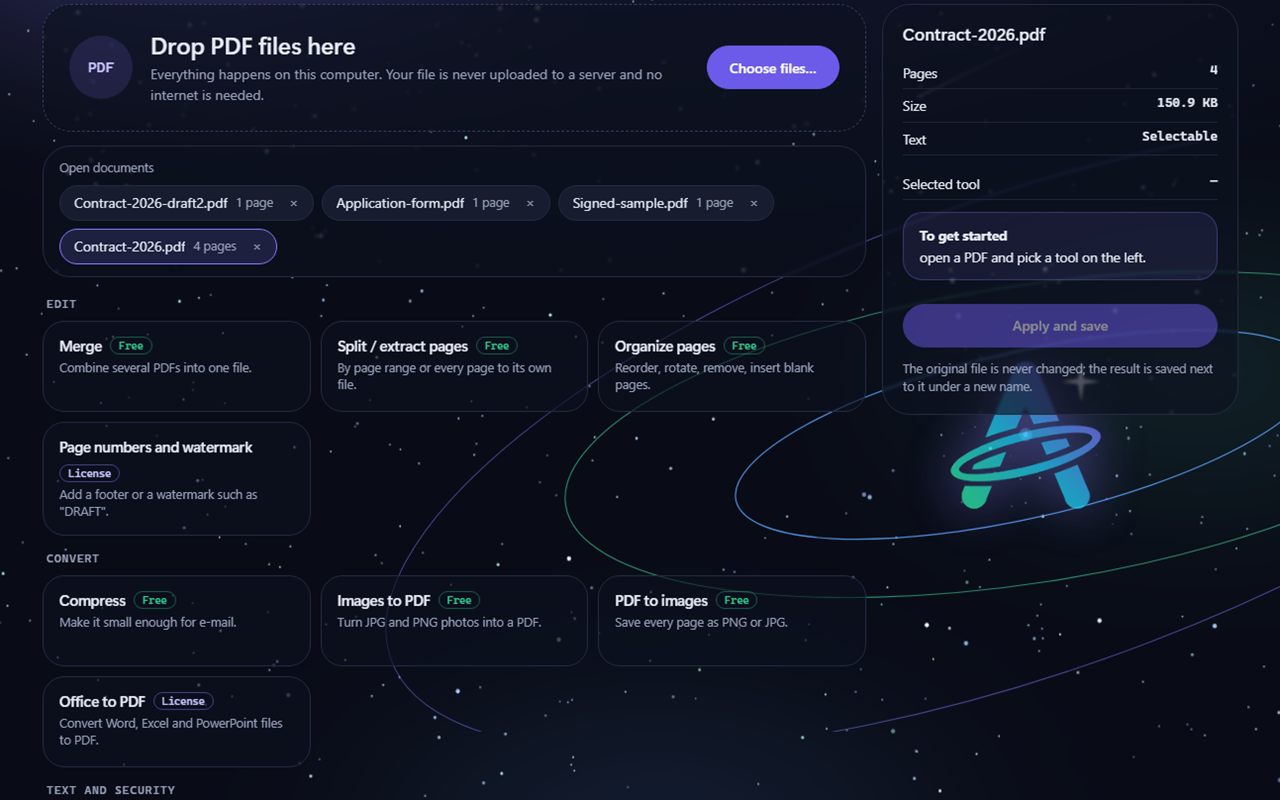
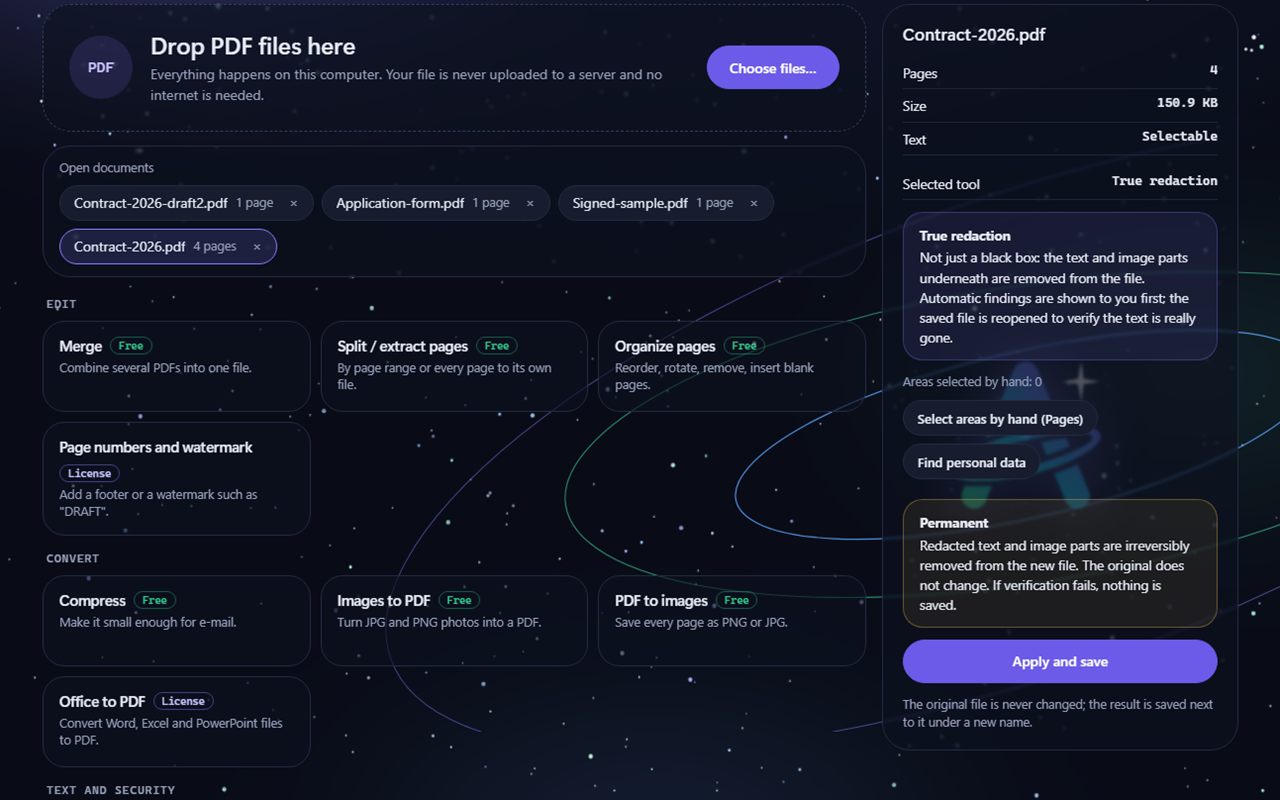
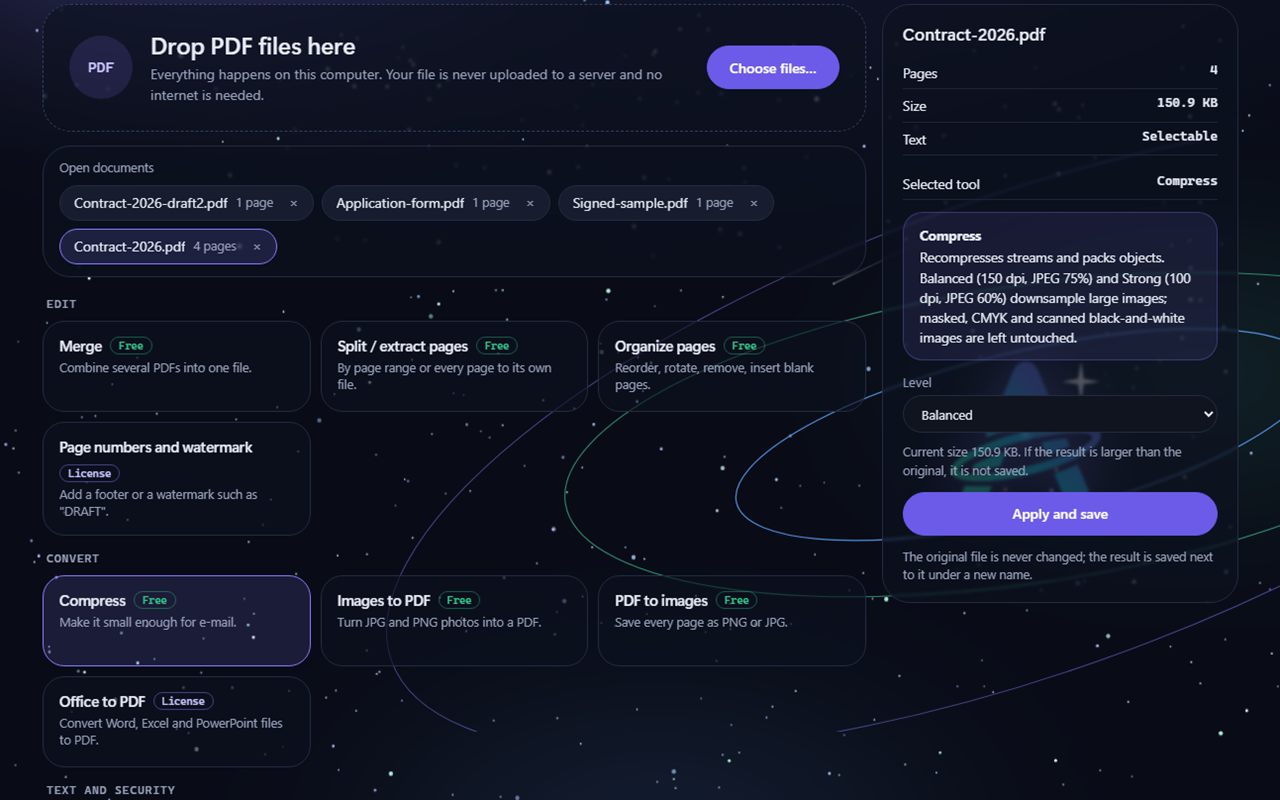
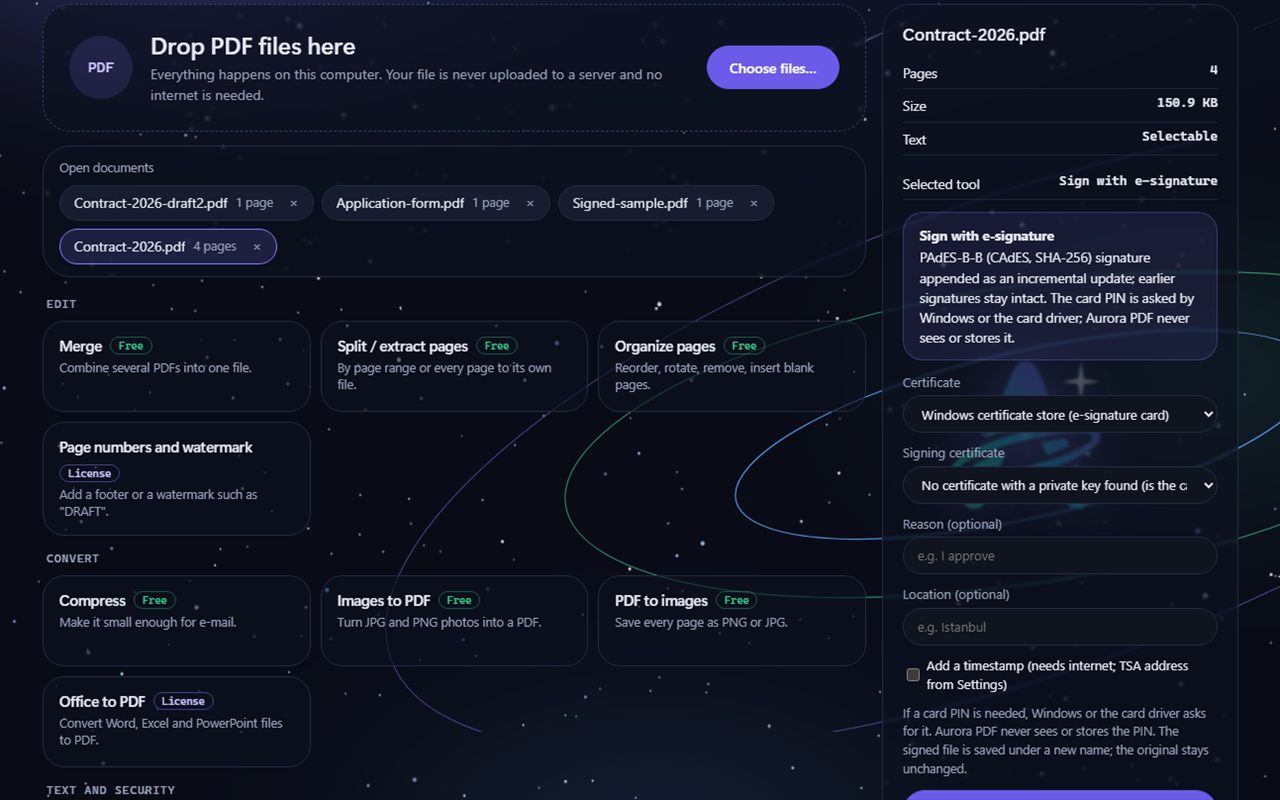
You pick a tool on the left; on the right come that tool's settings and an Apply and save button. The screens below are example views of the program's real English interface, taken in a rehearsal environment with test documents; the documents, names and numbers are sample data.
ToolsEach card says whether the tool is free or needs a licence. Several PDFs can be open at the same time. Example view · sample data.
True redactionIt does not just draw a black box: the text and image part underneath are removed from the file. What is found automatically is shown to you first. Example view · sample data.
CompressAt Balanced and Strong levels large images are downsampled; masked, CMYK and scanned black-and-white images are left alone. If the result did not get smaller, no file is written. Example view · sample data.
E-signatureYou pick the certificate from the Windows store or a PFX file; Windows or the card driver asks for the card PIN, and the program never sees or stores it. No card was plugged in for this screen, so a certificate-not-found notice shows. Example view · sample data.
What it can do
From reading to signing, PDF in one window
Features with a Beta badge were coded and tested in a test environment but have not yet been fully tried in real conditions: e-signing with a smart card, live timestamping and Office with a normal installation. Which features are free and which need a licence is in the Free use section.
Open and view
Opens PDFs, draws pages, and asks for the password on a protected file. Several documents can stay open at once; thumbnails are drawn in groups.
Merge, split, edit pages
Combines several PDFs into one file; splits by page range or each page into its own file; reorders, rotates and removes pages and adds blank pages. Nested bookmarks are carried to the new page order when merging and splitting; if you like, a top-level bookmark with the file name is added for each file.
Compress
Light does lossless compression only. At Balanced (150 dpi) and High (100 dpi) large images are downsampled; masked, CMYK and scanned black-and-white images are left alone. Before and after sizes are shown; if the result did not get smaller, no file is written.
Image to PDF, PDF to image
Turns JPG and PNG pictures into PDF (JPEGs are not re-encoded); saves each page as PNG or JPG at 150, 300 or 600 dpi.
Page numbers and watermark
Adds page numbers as a footer or a watermark such as "DRAFT"; Turkish characters print correctly and text stays upright on rotated pages.
Text recognition (OCR)
Adds an invisible text layer to scanned pages with Windows' own OCR; the picture does not change, and the text becomes searchable and selectable. Pages that already have text are skipped; the language is chosen in Settings.
Real redaction
Turkish ID numbers (with their check digits), IBANs, phone numbers and e-mail addresses are found automatically and listed to you first; you can also draw an area by hand. Text in the area is deleted from the file, the pixels in images are painted black, and letters outside the area are rewritten in the original font. A check is done after saving; a file that does not verify is not saved.
Add and remove a password
Adds a password with AES-256; removing a password works only with the correct password, there is no password cracking. Passwords never appear on a command line and are deleted as soon as the operation ends.
Fill forms and signature image
Fills in form fields (text, checkbox, list) and adds a signature image you draw or take from a photo. The signature image is stored encrypted on your computer and is not a legal e-signature.
Compare two PDFs
Compares the text of two PDFs line by line and lists the numbers of additions, deletions and changes and the first 1000 differences.
Check signatures (free)
Checks every signature in an incoming PDF: is it mathematically valid, is the certificate chain trusted, does the signature cover the whole document, did the content change after signing. Certificate revocation is not checked offline. It warns you before you edit a signed document.
Office document to PDF Beta
Converts Word, Excel and PowerPoint files to PDF; it works if LibreOffice or Microsoft Office is installed on the computer, otherwise it says why the tool is off. LibreOffice is not bundled; it runs with a separate profile and a copied input and does not touch your own profile.
E-signature (PAdES-B-B) Beta
Signs with a certificate from the Windows certificate store or a PFX file; the original bytes stay as they are, the signature is written as an incremental update and earlier signatures are not broken. Windows or the card driver asks for the card PIN. It has not yet been tried with a real e-signature card.
Timestamp on the signature Beta
Optional and off by default: if you turn it on, a timestamp (RFC 3161) is requested from a timestamp server for the signature, which needs the internet. It has not yet been tried with a live timestamp server.
21 languages Beta
The interface is available in 21 languages; Arabic and Urdu are shown right to left. The translations passed automatic checks and a back-translation check; review by native speakers is still under way.
Measured, written down
We tested it on a real computer
On 11 October 2026 an acceptance run was done on a real computer with administrator rights; every tool was also tried on realistic PDFs produced with LibreOffice and Edge. The personal information in the documents is made up; your real documents were not used.
We tested it on a real computer
Tested
Result
How it was verified
Real redaction (8-page contract)
2 ID numbers, 1 IBAN, 2 phone numbers and 2 e-mail addresses were found and redacted; 82 characters were rewritten in the original font
The file was reopened and the raw bytes scanned with qpdf: 0 findings left
Redaction on the acceptance-run document
The text left the file
Reopen and qpdf raw scan: 0 findings left, not found in the raw strings
Compression, PDF with photos (Balanced / High)
7.4 MB → 3.7 MB (50%) / 3.4 MB (54%)
Page rendering difference was measured; where the result did not get smaller, no file was written
Add and remove a password
An AES-256 password was added; a wrong password was refused, the right one opened it
qpdf password check; no password files were left after the operation
Text recognition (OCR)
The text in a scanned invoice was recognised
Windows OCR; an invisible layer was added, the picture did not change
Office document to PDF (LibreOffice 26.8.1, an unpacked portable copy)
Word 8 pages, Excel 2 pages, PowerPoint 2 pages; Turkish text correct
The resulting PDFs were read with PDFium
E-signature (with a test certificate)
Signed; both signatures valid; with 1 byte changed the signature showed as broken
qpdf --check clean; independently checked with LibreOffice's own signature verification
Original files
None of the six files changed
SHA-256 values identical after the operations
A broken PDF and a foreign request
The broken file was refused and the panel stayed up; a foreign Host was refused
Error code and HTTP response
Unlicensed user edition
Redaction asked for a licence; a free tool worked
Error code LISANS_GEREKLI
Every tool on realistic PDFs
132 of 132 steps done, 0 problematic
6 PDFs and 3 Office documents; reopened and checked after every operation
In the 11 October 2026 administrator acceptance run, 40 of 40 steps passed and 0 failed.
It has not yet been tried with a real e-signature card, a live timestamp server or a normally installed LibreOffice or Microsoft Office; these three features carry a Beta badge. Microsoft Office was never tried.
These are measurements on one computer; they do not promise the same result on every computer. The installer has so far been tested only in test mode.
What we leave out on purpose
What we do not do to your PDF
We leave out behaviours that are common in document tools but weaken your security.
No uploading your file
Many online PDF tools upload your file to a server. Aurora PDF does not: the work happens on this computer, and there is no account or file-size limit.
It does not ask for or store your card PIN
For e-signing, Windows or the card driver asks for the PIN. Aurora PDF does not see, ask for or store the PIN; a PFX password is held in memory only during signing.
It does not run code inside PDFs
JavaScript embedded in PDFs, opening external links or running file attachments are never run; functions that run JavaScript or actions were never wired into the program.
Limits
What it does not do
Knowing what a document tool cannot do matters as much as knowing what it does. We say these up front:
Even with real redaction, before sharing an important document, open the result in another program and try selecting the text: we verify, but the decision is yours.
E-signature limits: no real card has been tried yet, the signature is invisible, long-term validation information (LTV) is not added, and the classification of changes after signing is heuristic.
Some Turkish e-signature cards may have no mini driver or CSP for Windows; if the certificate does not show in the Windows store, the program cannot sign (PKCS#11 support is not in this version).
If the public certificate root is not in Windows' trusted root store, verification says "mathematically valid, certificate not trusted".
In redaction, content inside a form object cannot be picked apart, so it is removed as a whole; rotated or skewed images are removed entirely. It has been tried only to a limited extent on very complex real-world PDFs (Type3 fonts, tagged content).
In compression, images inside form objects and inline masked images are skipped; if the same image is used on several pages, only the copy on the first page is shrunk.
Form fields (AcroForm) are not yet carried over when merging; bookmarks are.
Editing a password-protected document writes the output without a password; the program tells you, and you can lock it again with Add a password.
For Office document to PDF, the Word route (Microsoft Office) was never tried; the LibreOffice route was tried only with an unpacked portable copy.
Free use and licence
The basic tools are free
Merging, splitting, page editing, compression, image conversions and signature checking are free; no watermark is added to outputs. A licence is needed for redaction, passwords, OCR, e-signing, Office conversion and other advanced tools. Aurora PDF is not sold separately: it comes with the Aurora One Licence.
For everyone
Free use
Free
Most everyday PDF jobs, without watermarks.
Opening and viewing PDFs
Merge, split, edit pages
Compress
Image to PDF and PDF to image
Check signatures
Not included: Page numbers and watermark
Not included: Real redaction
Not included: Add and remove a password
Not included: Text recognition (OCR)
Not included: Fill forms and signature image
Not included: Compare two PDFs
Not included: Office document to PDF
Not included: E-signature and timestamp
All programs, one licence
With the Aurora One Licence
Unlock the advanced tools. The same licence covers every Aurora One program.
Everything in free use
Real redaction and finding personal information
Adding and removing a password
OCR, page numbers and watermark
Form filling, signature image and comparison
Office document to PDF (Beta)
E-signature and optional timestamp (Beta)
No watermark is added to the output of the free tools.
The licence is verified over the internet at least every 14 days; only the licence key and a digest of the device ID are sent. PDF operations do not use the internet.
Download and purchase: coming soon. Aurora PDF is currently in beta testing; the installer will appear on this page when it is ready.
The installer is not code-signed yet; Windows may show a SmartScreen warning on first run. Code signing will be added before release.
Aurora One Licence This program is covered by the Aurora One Licence: one licence for every Aurora One program.
Windows 10 (version 1803 or later) or Windows 11, 64-bitAcceptance tests were run on Windows 11; Windows 10 has not been tested yet.
Installation
Installer (.exe)The download link will appear on this page when it is ready.
.NET Framework
4.7.2 or laterIncluded with Windows 10 (1803 and later) and Windows 11.
Rights
Runs with normal user rightsThe Open with Aurora PDF right-click entry is added during installation, which asks for administrator permission.
Office document to PDF
LibreOffice or Microsoft Office must be installed on the computerAurora PDF does not bring them with it; the LibreOffice location can be chosen in Settings.
E-signature
A certificate with a private keyIn the Windows certificate store (for example published by an inserted card's driver) or in a PFX file.
Internet
PDF operations work offlineThe licence is verified at least every 14 days; the timestamp server is contacted only if you turn on timestamping for the signature.
FAQ
Frequently asked questions
Are my PDFs uploaded anywhere?
No. Everything is done on this computer. The program reaches the internet for licence verification; if you turn on timestamping for e-signatures, only the signature's digest goes to the timestamp server. Nothing from your document is sent.
Does redaction really delete the text, or just draw a black box on top?
It deletes it. Text in the area is removed from the file, the pixels in images are painted black, and after saving the file is reopened and scanned at text and raw-byte level. If anything is still found, the file is not saved.
Still, before sharing a very important document we recommend opening the result in another program and trying to select the text.
Does it overwrite my original file?
No. The result is saved beside it under a new name such as "Name (düzenlendi).pdf"; if the name is taken, (2), (3) is added.
Is the e-signature legally valid?
Aurora PDF writes the signature in the ETSI PAdES-B-B format, but its legal validity depends on the nature of the certificate; we do not give legal advice. This feature is Beta: we have not yet tried it with a real e-signature card.
The signature image in the form-filling feature is not a legal e-signature.
My e-signature card does not show in Windows. What should I do?
Aurora PDF sees the card certificate only from the Windows certificate store. You need to install the card's Windows driver (CSP or KSP), and the certificate must be published to the store when the card is inserted. Without a driver, the certificate list stays empty and signing cannot be done.
Do I need Word to convert Office documents to PDF?
No; LibreOffice works too. If neither is installed on the computer, the tool is off and says why. Aurora PDF does not bring these programs with it.
Can I try it before buying?
Yes. Merging, splitting, page editing, compression, image conversions and signature checking are free, with no watermark on outputs.
Aurora PDF is not sold separately; it is used with the Aurora One Licence, which covers all Aurora One programs. Download and sales are not open yet.
Our other products
Another tool built on the same principles
All of our products are designed for Windows and are local-first.
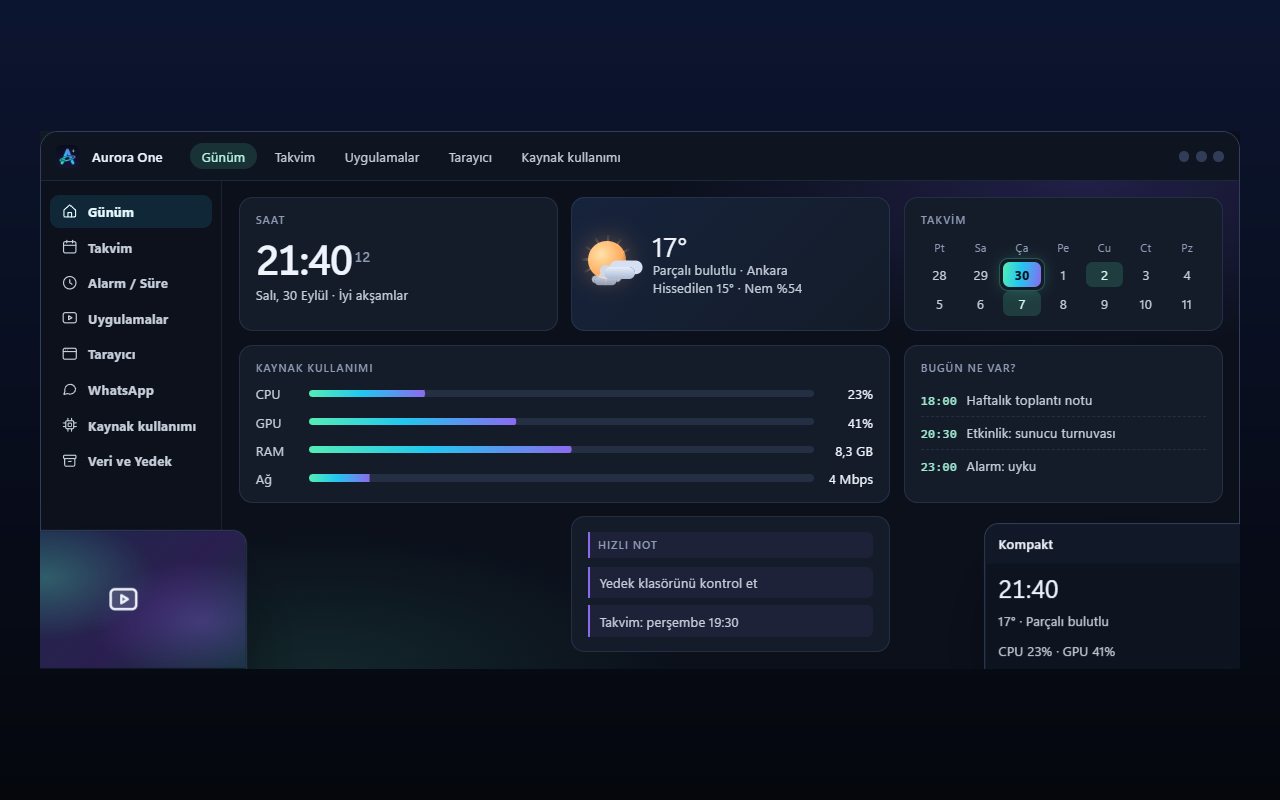
Representative interface
Aurora One App
Windows 10 and 11 (64-bit)
Status: Sales and beta applications are not open yet
Brings the tools you open every day—from calendar and browser to WhatsApp, media apps and system monitoring—into one Windows application; your records stay on your computer.
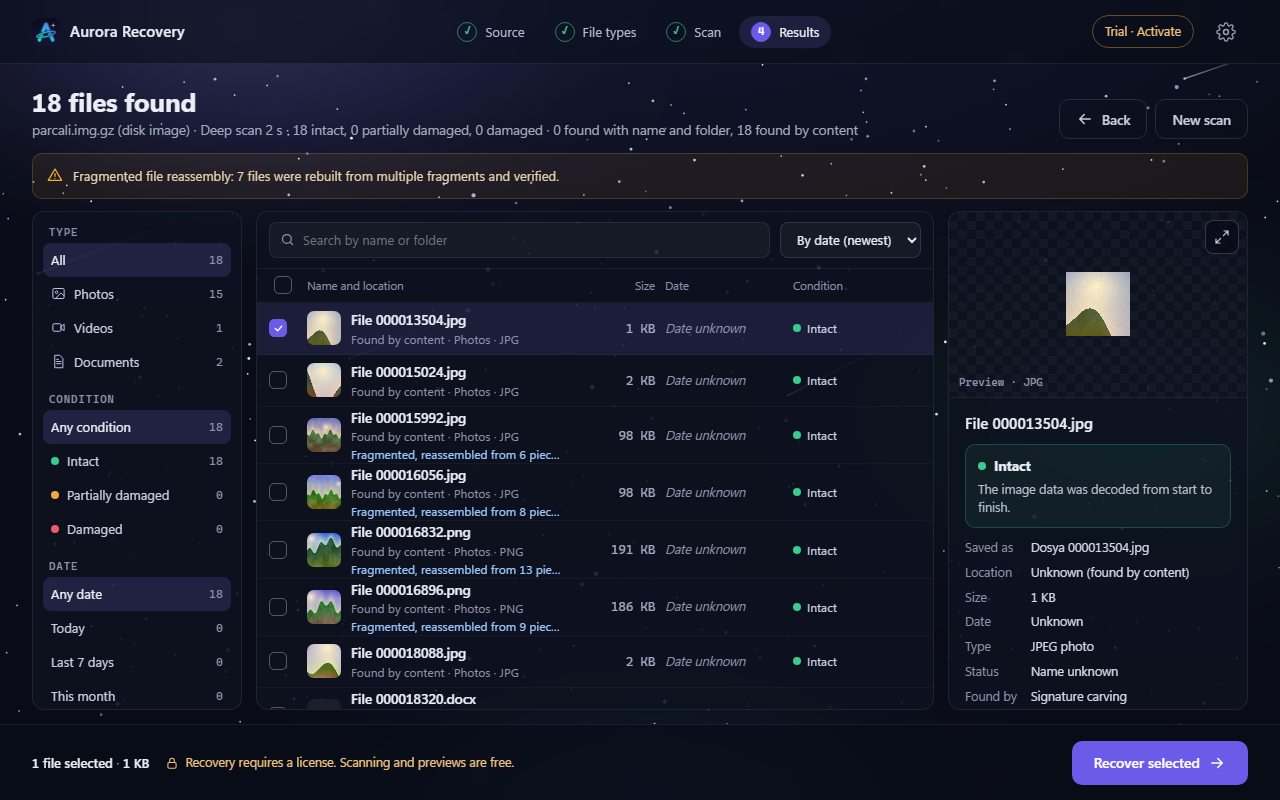
Finds photos, videos and documents lost to deletion, formatting or corruption on USB drives, SD cards and disks—and tells you whether each file will open before you recover it.
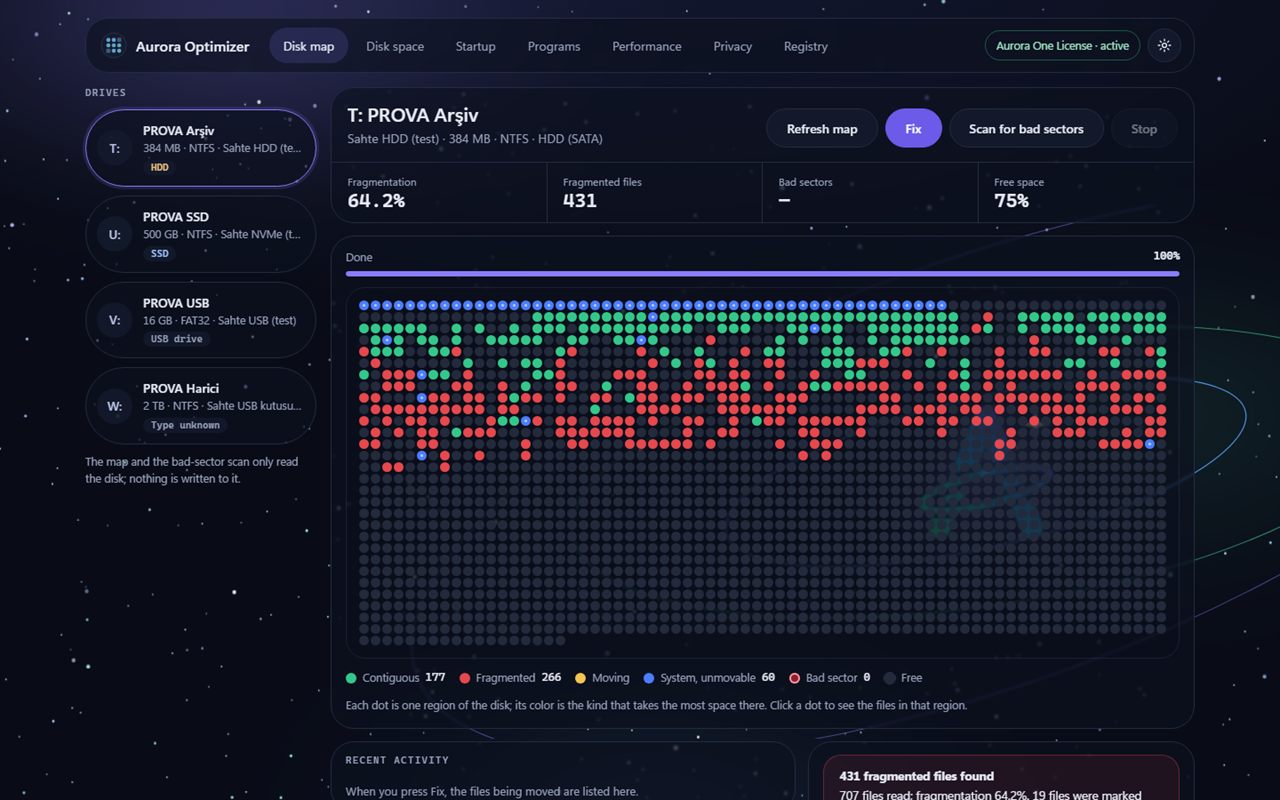
Examines your disk, free space, startup, programs and registry, and tells you what it suggests and why. It changes nothing until you choose, backs up every change first and keeps it reversible.
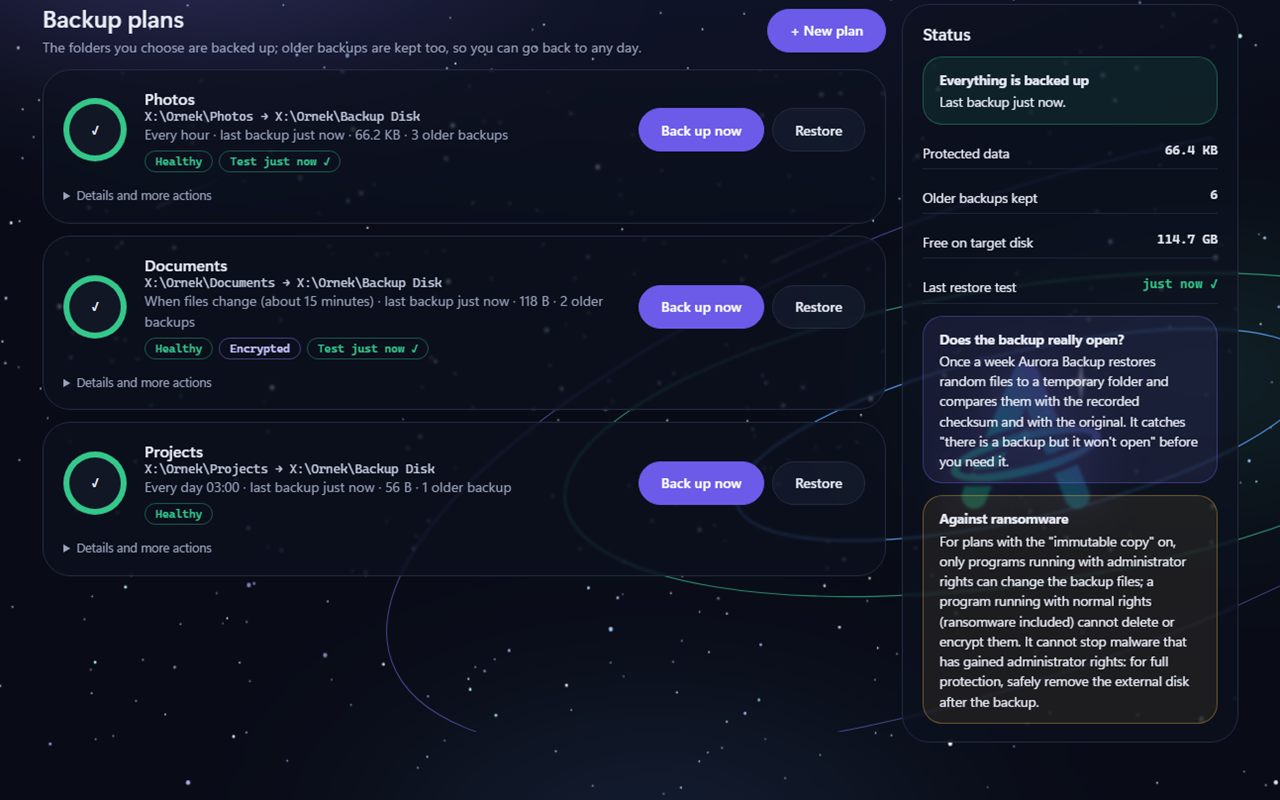
Backs up the folders you choose to an external disk, a second disk or a network folder, keeps older backups too, and lets you go back to any day. It tests regularly that the backup really opens, and when restoring it never overwrites an existing file.
Overwrites a file's content, reads it back to verify, then deletes the file and its name; it also cleans free space and whole disks. It does not go to the Recycle Bin, and no recovery program, Aurora Recovery included, can bring it back. It tells you the limit on SSDs up front.
Puts your private files in an encrypted folder locked with a password: file contents and file names are encrypted with AES-256-GCM. If you lose both your password and your recovery key, we cannot open the vault either. It says up front that malware can read a vault while it is open.
Always copies photos and videos from your phone, SD card or a folder into the archive and never deletes anything from the source. It verifies the copies with SHA-256, groups them into events on a timeline and finds exact duplicates. No face recognition, no cloud and no online map.