Aurora Backup backs up the folders you choose to an external disk, a second disk or a network folder, and keeps older backups too, so you can go back to any day. Once a week it restores random files from the backup and compares them with the recorded checksum, catching "there is a backup but it won't open" before you need it. Restoring is always free and never overwrites an existing file.
Free restoring, with or without a licence, even after it expires
34/34 steps passed in an acceptance run on a real computer and a USB stick
AES-256 optional encryption (licence); password and recovery key
Coming soon an image of the whole disk
Example view · sample data; names and numbers on screen are examples
Three promises
A backup is worth only what you can restore
The biggest problem with backup programs is a backup that will not open when you need it. Aurora Backup tackles that from the start.
It tests the backup
Once a week, 20 random files are restored from the backup to a temporary folder and compared with the recorded SHA-256 checksum and, if the original has not changed, with the original. The result shows in the panel as "Test just now ✓", and you can run it by hand at any time.
Catches "there is a backup but it won't open" in advance
Every restored file is verified with SHA-256
Restoring is always free
We do not hold your data hostage: with no licence, or after it expires, your backups still open, preview and restore. Restoring never overwrites an existing file; if it differs, the restored file is placed beside it with "(restored)" added to its name.
Pick a moment on the timeline, see the files, preview them
Restore to the original place or to another folder
A half-finished backup does not damage the old one
Every write goes to a temporary file first, is flushed to disk, then renamed; the backup point is written last. If the computer shuts down or the program is killed mid-backup, your earlier backups stay intact byte for byte.
Tested by force-closing the program mid-backup
The next backup cleans up the unfinished work and reports it
How it looks
Backups, restore, settings
You move between sections with the tabs at the top. The screens below are example views of the program's real English interface, taken in a rehearsal environment with test folders; the folders, names and numbers are sample data.
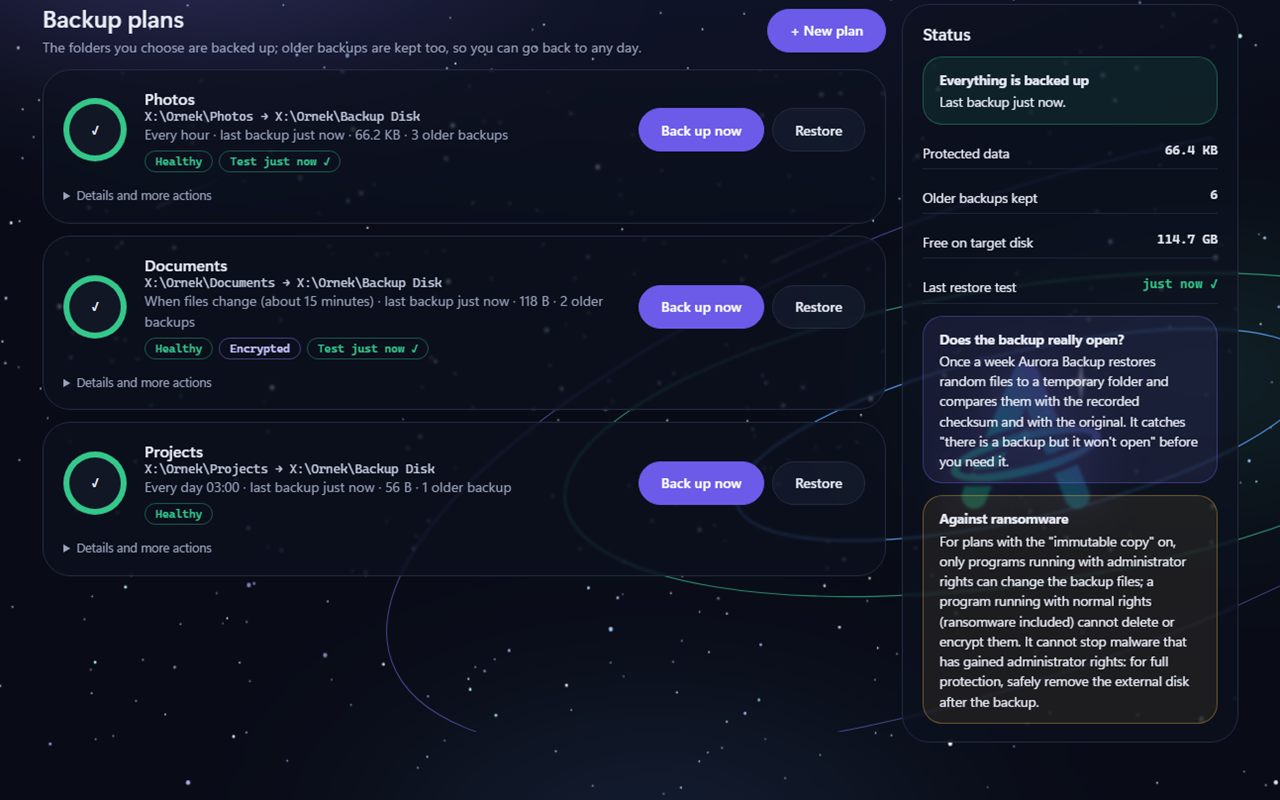
Backup plansEach plan shows its last backup, the number of older backups kept and the last restore test; the box on the right explains whether the backup really opens and the immutable copy against ransomware. Example view · sample data.
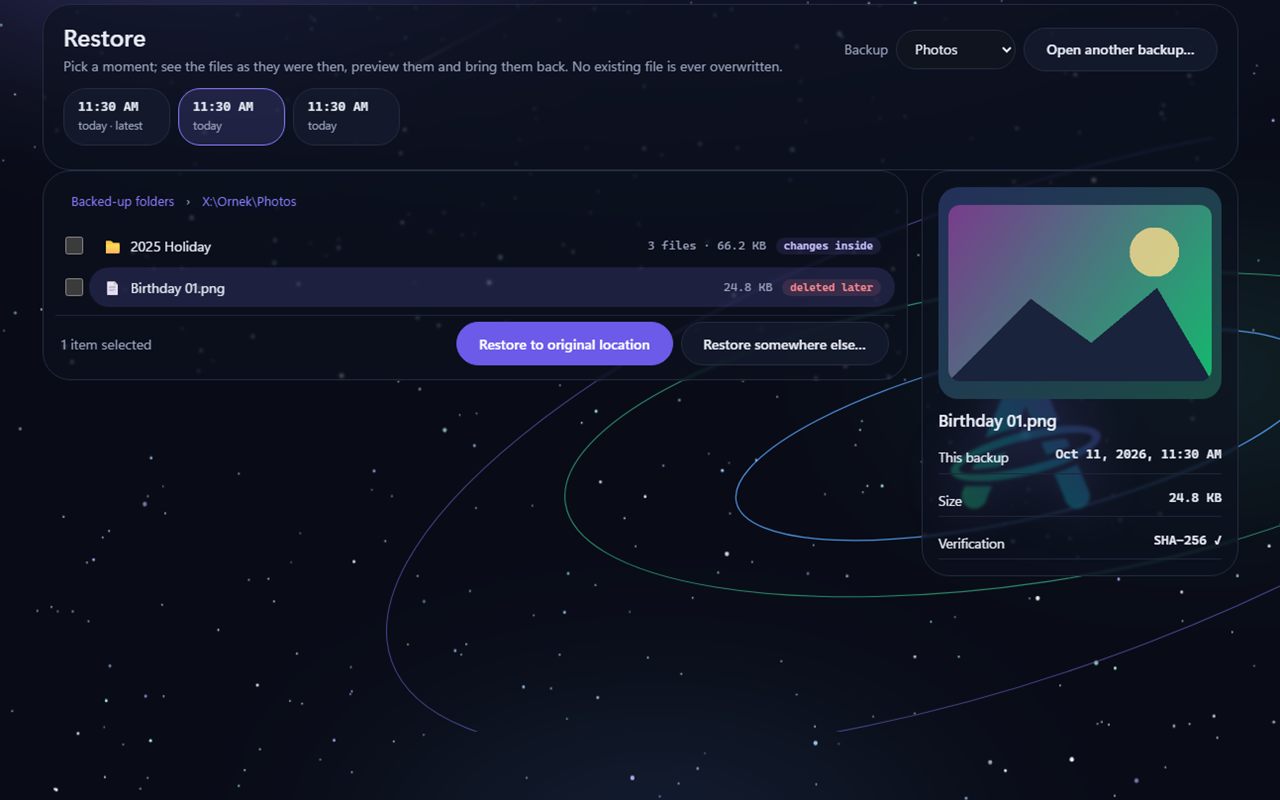
RestoreYou pick a moment; you see the files as they were then, preview them and bring them back. New, changed and later-deleted files are marked. Example view · sample data.
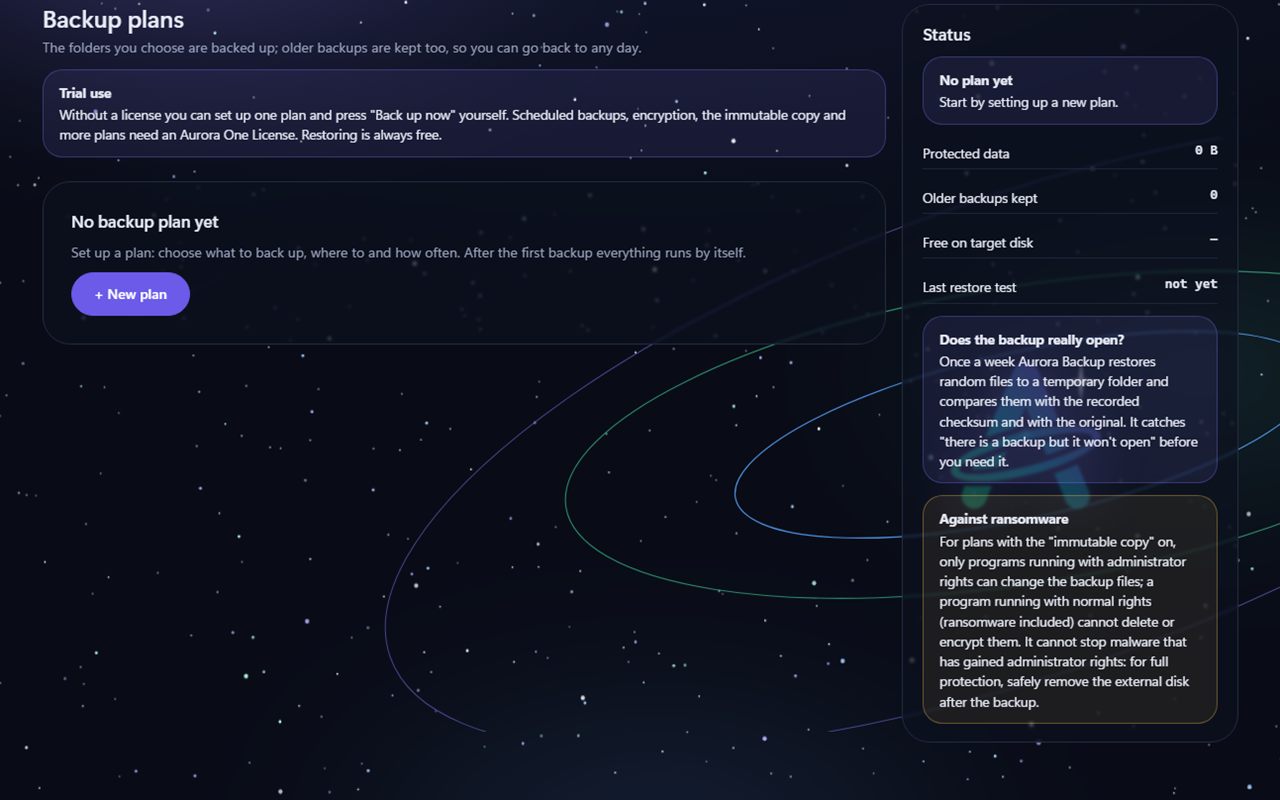
First runWithout a licence you can set up one plan and press Back up now by hand. Scheduled backup, encryption, immutable copy and more than one plan need an Aurora One Licence. Example view · sample data.
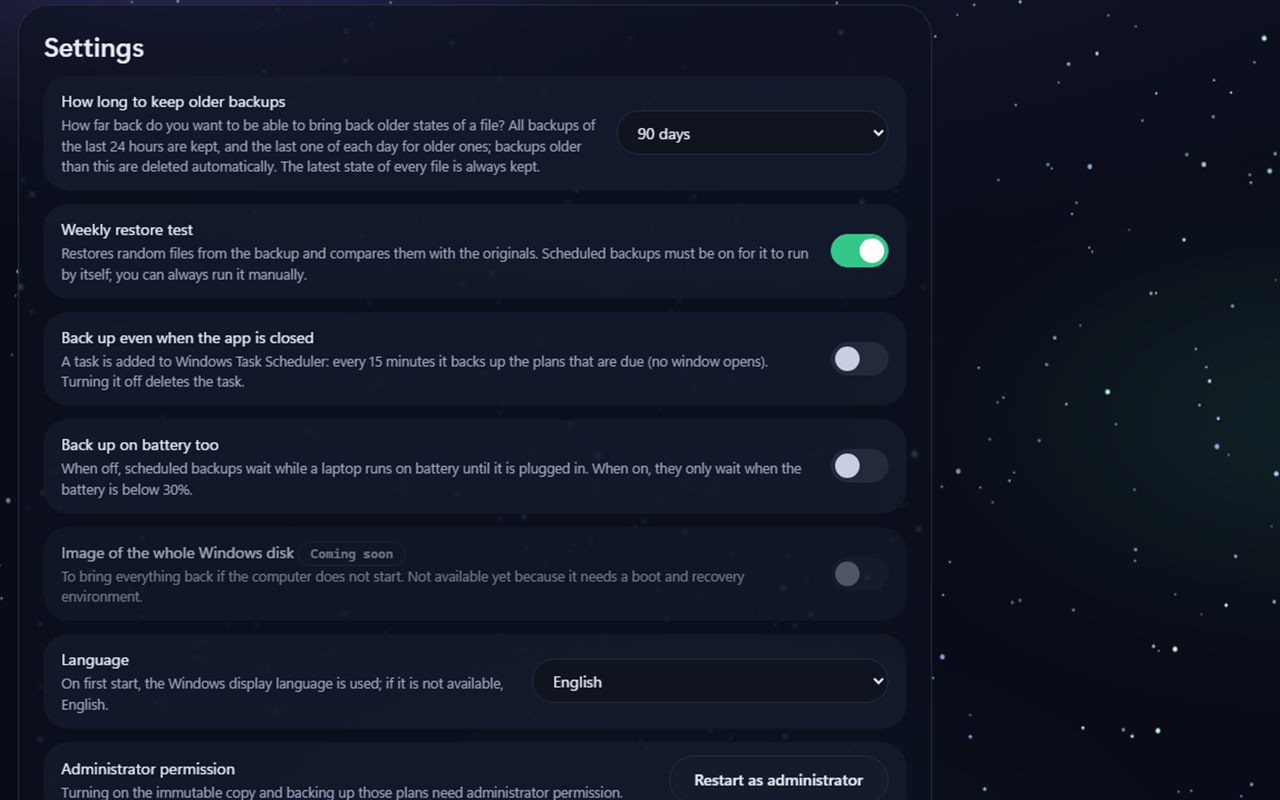
SettingsYou can keep older backups 30 days, 90 days (default), 1 year or without limit; the latest state of every file always stays. An image of the whole disk is marked Coming soon. Example view · sample data.
What it can do
From folders to restoring, backup in one window
Features with a Beta badge were coded and tested in a test environment but have not yet been fully tried in an acceptance run on a real computer.
Backup plans
You choose which folders to back up, where to (external disk, second disk or network folder) and how often (hourly, when files change, daily at a set time, or by hand); you can add exclusions. Source and target cannot be the same or nested, and the Windows folder cannot be a source.
Same-disk warning
If the target is on the same physical disk as the source, the program warns you: if the disk fails, both go. Whether the target is an external or a second disk is read from Windows' device information.
Deduplication and backup points
Files are split into 4 MB chunks; identical content is stored once, unchanged files are not read again, and no new backup point is written when nothing changed. Reparse points are not entered during a backup and cloud placeholders are skipped.
Keeping older backups
Everything from the last 24 hours is kept, then the last one per day up to 30 days, then the last one per week; expired ones are cleaned up. The latest state of every file and the newest backup point are never deleted. If the target fills up, space is freed from the oldest first; if that is not enough, the backup stops and earlier backups stay intact.
Encryption (AES-256)
Optional: AES-256, HMAC-SHA256 and PBKDF2 (600,000 iterations) to strengthen the password; we did not write our own algorithm. In an encrypted backup the file names are not in plain text either. Without the password or the recovery key, which is shown only once, the backup cannot be opened.
Restore
You pick a moment on the timeline; new, changed and later-deleted files are marked in the tree; pictures and text are previewed and a whole folder can be restored at once. Existing files are never overwritten; every file is written to a temporary location and verified with SHA-256.
Weekly restore test
20 random files are restored to a temporary folder and compared with the recorded checksum and, if unchanged, with the original; the result shows in the panel. You can run it by hand at any time.
Immutable copy (against ransomware)
The backup folder gets protected permissions: no program running with normal rights, ransomware included, can delete, change or encrypt the backup files; reading (restoring) stays open. It asks for administrator permission and works only on local NTFS disks.
Scheduled and automatic backup Beta
If you turn it on, a task that runs every 15 minutes without opening a window is added to Windows Task Scheduler; plans that are due are backed up. Turning it off deletes the task. On battery it is deferred by default. Creating and deleting the task were tested; a real 15-minute run has not yet been observed.
Image of the whole disk Coming Soon
Taking an image of the whole Windows disk so you can restore everything if the computer will not start. It is not in this version because it needs a boot and recovery environment.
21 languages Beta
The interface is available in 21 languages; Arabic and Urdu are shown right to left. The translations passed automatic checks and a back-translation check; review by native speakers is still under way.
Measured, written down
We tested it on a real computer
On 11 October 2026 an acceptance run was done on a real computer with administrator rights: on the computer's C: drive with test folders and on a 57.8 GB USB stick. Your real files were not used; the data backed up is small (10.5 MB and 111 MB).
We tested it on a real computer
Tested
Result
How it was verified
First backup (5 files, 10.5 MB, including a long path and Turkish names)
Backed up; no new backup point was written when nothing had changed
All chunks verified: 5 chunks, 0 errors
Restore
Files came back byte for byte identical
Compared with the originals: 5 files identical, 0 faulty
Second restore to the same folder
No file was overwritten
5 files skipped as identical, 0 restored
Restore test
5 of 5 files opened
Compared with the recorded checksum and the original
Encrypted backup
File names are not in plain text; a wrong password was refused
Restored with the recovery key in a different data folder (simulating another computer)
Force-closing the program during a backup to the USB stick
No half-written point; the earlier backup stayed intact
Backup point verification: 0 errors; the next backup completed and reported the unfinished work
Both backup points on the USB stick (111 MB)
All 30 chunks verified, restore byte for byte identical
6 files, 0 faulty
Unlicensed user edition
One plan and a manual backup worked; a second plan and encryption were refused; restoring stayed free
Program output: the licence-required code and the restore result
Task Scheduler task
A 15-minute task was created, verified and deleted
The task XML was read; the task running on its own was not observed
Immutable copy
Protected permissions were set with administrator rights, the owner became Administrators, a backup was taken
Owner and permissions were read back
In the 11 October 2026 administrator acceptance run, 34 of 34 steps passed, 0 failed and 0 were skipped.
These are measurements on one computer with small data. The speed and memory use for large sources of hundreds of thousands of files have not been measured yet.
The installers have so far been tested only in test mode; a real installation has not yet been done on our own computer.
What we leave out on purpose
What we do not pretend is backed up
The most dangerous thing in a backup program is looking as if it protects something it does not. So we say the following plainly.
Open files are not counted as backed up
Open files locked by another program (for example an open Outlook data file or a database) are not backed up in this version. Aurora Backup skips them and lists them as skipped in the report; shadow copy (VSS) support is not there yet.
It never overwrites an existing file
When restoring, if the disk already holds a different file with the same name, it is not overwritten; the restored file is placed beside it with "(restored)" added. If it is identical, it is left alone. Path escapes, device names and reparse points at the target are refused.
It cannot recover your password
If you lose both the password and the recovery key of an encrypted backup, the backup cannot be opened, and we cannot open it either. The recovery key is shown only once and the password is never written anywhere.
Limits
What it does not do
Knowing what a backup program cannot do matters as much as knowing what it does. We say these up front:
One copy of a backup is not enough: for important data we recommend keeping at least one backup somewhere else as well, for example away from home or on an online service.
Open and locked files are skipped (no shadow copy support); skipped files are reported.
It does not take an image of the whole disk: if the computer will not start, it cannot restore everything. That feature is Coming soon.
The immutable copy cannot stop malware running with administrator rights, nor someone who plugs the disk into another computer and takes ownership. It is off on FAT and exFAT disks and on network folders. For full protection, safely remove the external disk after the backup.
Backing up a plan with an immutable copy needs administrator permission.
The when-files-change mode scans every 15 minutes while the app is closed, because there is no file watcher then; if nothing changed it writes no new backup point.
Cleaning up older backups happens only when a backup runs; there is no separate scheduler.
Files are split into fixed 4 MB chunks; if bytes are added to the start of a large file, the later chunks count as changed too.
Backup and restore work through the Windows file system; if the target disk itself fails, the backup goes with it, so the target should not be the same disk as the source.
Free use and licence
Back up first, decide later
Restoring, previewing and backing up by hand (one plan) are free. A licence is needed for more than one plan, scheduled backup, encryption and the immutable copy. Aurora Backup is not sold separately: it comes with the Aurora One Licence.
For everyone
Free use
Free
Set up a plan, back up by hand; restore whenever you need to.
Restoring, previewing and opening another backup
Restore test (by hand)
1 backup plan and a manual "Back up now" (unencrypted)
Keeping and cleaning up older backups, deleting a plan
Not included: More than one backup plan
Not included: Scheduled and automatic backup
Not included: Encryption (AES-256)
Not included: Immutable copy
All programs, one licence
With the Aurora One Licence
Let backups run on their own. The same licence covers every Aurora One program.
Everything in free use
Unlimited backup plans
Scheduled and when-files-change backup
AES-256 encryption and recovery key
Immutable copy (with administrator permission)
Restoring is always free: with no licence, or after it expires, your backups still open and restore (with the password or recovery key if encrypted).
The licence is verified over the internet at least every 14 days; only the licence key and a digest of the device ID are sent. Backing up, restoring and verifying do not use the internet.
Download and purchase: coming soon. Aurora Backup is currently in beta testing; the installer will appear on this page when it is ready.
The installer is not code-signed yet; Windows may show a SmartScreen warning on first run. Code signing will be added before release.
Aurora One Licence This program is covered by the Aurora One Licence: one licence for every Aurora One program.
Windows 10 (version 1803 or later) or Windows 11Acceptance tests were run on Windows 11; Windows 10 has not been tested yet.
Installation
Installer (.exe)The download link will appear on this page when it is ready.
.NET Framework
4.7.2 or laterIncluded with Windows 10 (1803 and later) and Windows 11.
Rights
Opens with normal user rightsTurning on the immutable copy and backing up those plans ask for administrator permission through "Run as administrator".
Target
External disk, second disk or network folderThe immutable copy works only on local NTFS disks; backups to FAT32 and exFAT disks work but this protection is off.
Internet
Backing up and restoring work offlineThe internet is used only for licence verification and update checks.
FAQ
Frequently asked questions
How do I know my backup really works?
Once a week Aurora Backup restores 20 random files from the backup to a temporary folder and compares them with the recorded SHA-256 checksum; the result shows in the panel as "Test just now ✓". You can also run it by hand.
For this test to run on its own, you need to turn on scheduled backup (licence).
Can I get an old file back?
Yes. Older backups are kept too: on the Restore tab you pick a moment on the timeline, see the files as they were then, preview them and restore them. By default they are kept for 90 days; you can also choose 30 days, 1 year or without limit.
Does it overwrite files on my disk when restoring?
No. If a file with the same name differs, the restored file is placed beside it with "(restored)" added; if it is identical, it is left alone.
Does it protect against ransomware?
Partly. With the immutable copy on, a program running with normal rights (ransomware included) cannot delete or encrypt the backup files. But it cannot stop malware that has gained administrator rights. For full protection, safely remove the external disk after the backup.
Are open files backed up?
Open files locked by another program are skipped in this version and reported. Closing the program and running the backup again is enough.
Does it send anything over the internet?
Backing up, restoring and verifying happen on your computer. The program uses the internet for licence verification and update checks; for the licence, only the licence key and a digest of the device ID are sent. Nothing from your files is sent.
Can I try it before buying?
Yes. You can set up a plan, back up by hand and restore; a licence is needed for scheduling, encryption, the immutable copy and more than one plan.
Aurora Backup is not sold separately; it is used with the Aurora One Licence, which covers all Aurora One programs. Download and sales are not open yet.
Our other products
Another tool built on the same principles
All of our products are designed for Windows and are local-first.
Representative interface
Aurora One App
Windows 10 and 11 (64-bit)
Status: Sales and beta applications are not open yet
Brings the tools you open every day—from calendar and browser to WhatsApp, media apps and system monitoring—into one Windows application; your records stay on your computer.
Finds photos, videos and documents lost to deletion, formatting or corruption on USB drives, SD cards and disks—and tells you whether each file will open before you recover it.
Examines your disk, free space, startup, programs and registry, and tells you what it suggests and why. It changes nothing until you choose, backs up every change first and keeps it reversible.
Merges, splits, compresses and edits PDFs; truly removes personal information, adds passwords and signs electronically. Everything happens on your computer; your file is never uploaded to a server and the original is never overwritten.
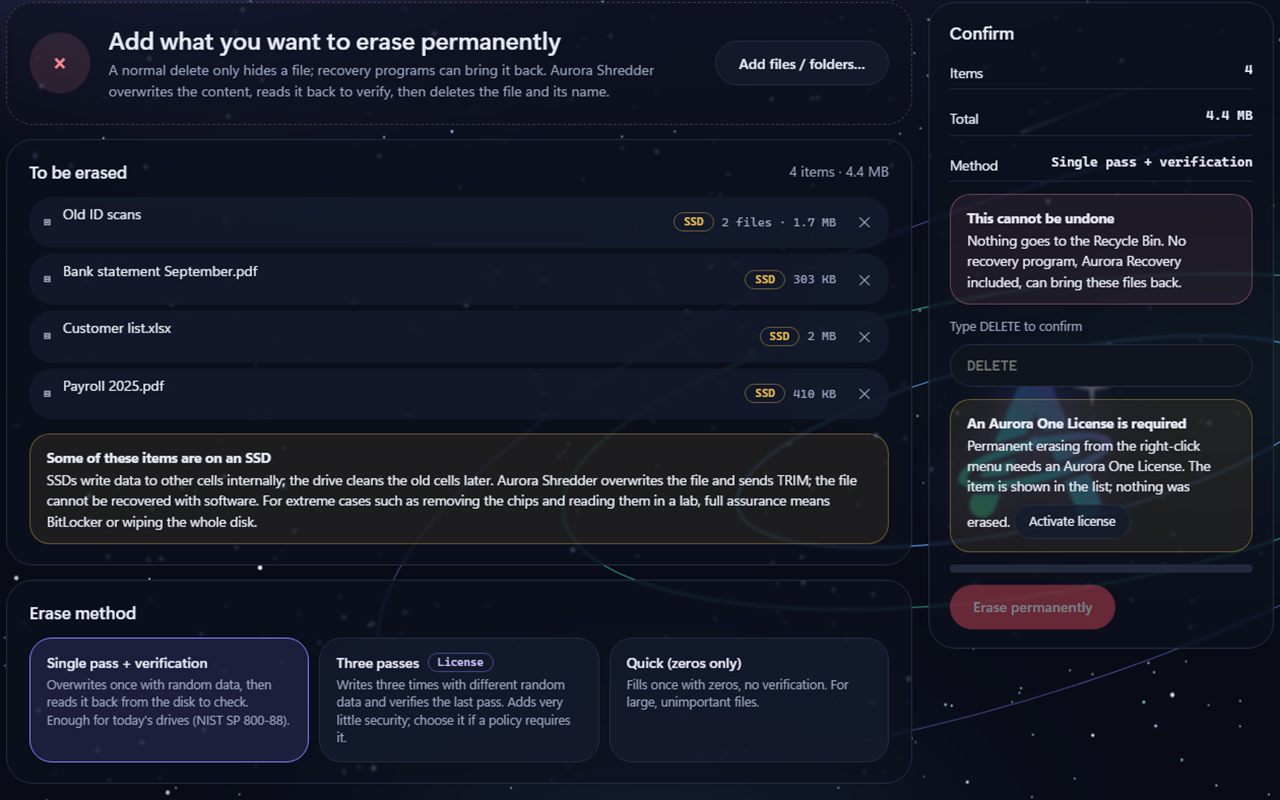
Overwrites a file's content, reads it back to verify, then deletes the file and its name; it also cleans free space and whole disks. It does not go to the Recycle Bin, and no recovery program, Aurora Recovery included, can bring it back. It tells you the limit on SSDs up front.
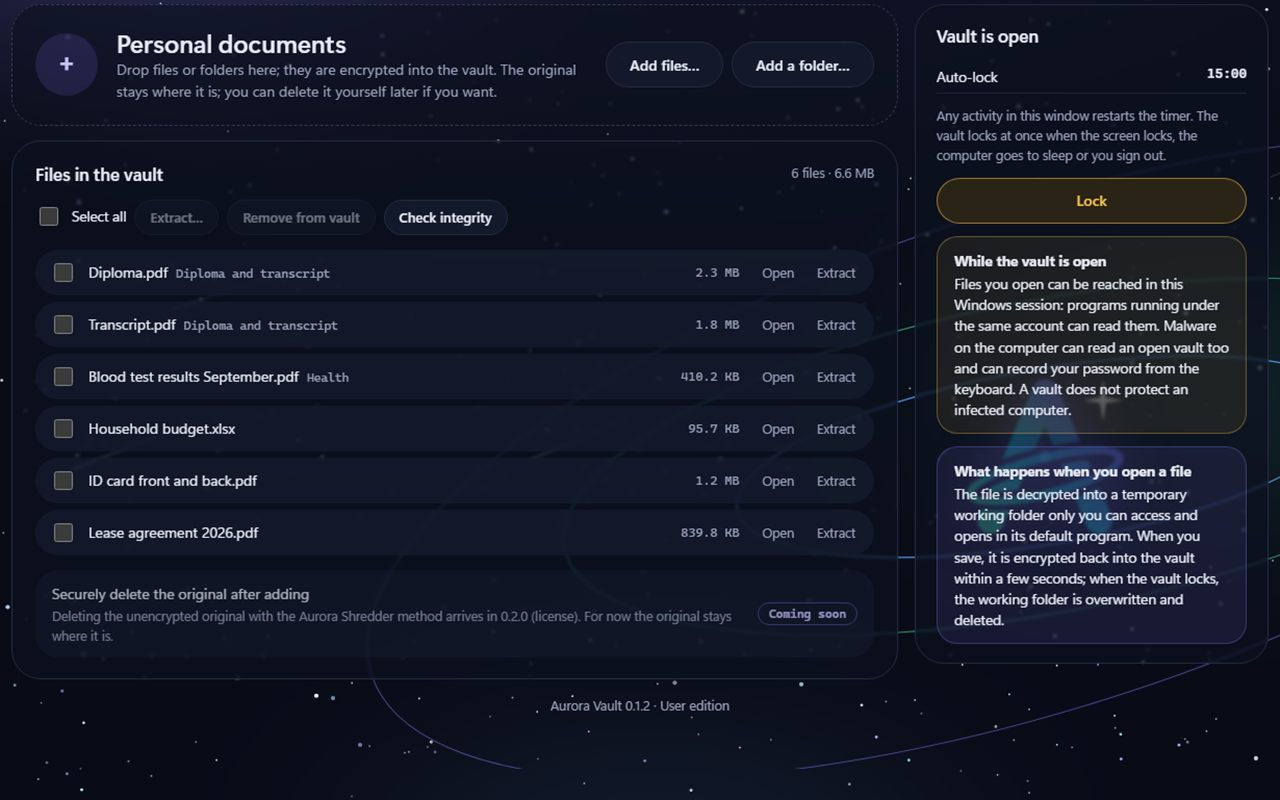
Puts your private files in an encrypted folder locked with a password: file contents and file names are encrypted with AES-256-GCM. If you lose both your password and your recovery key, we cannot open the vault either. It says up front that malware can read a vault while it is open.
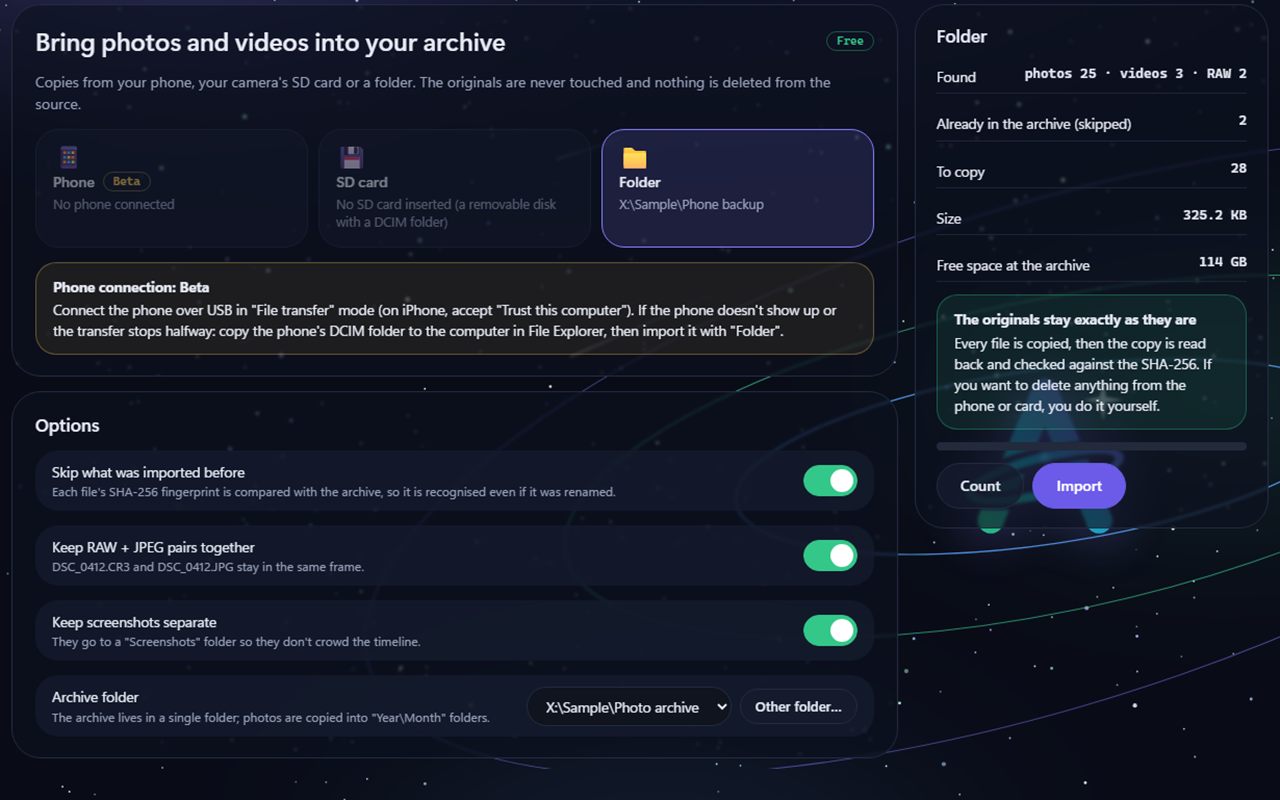
Always copies photos and videos from your phone, SD card or a folder into the archive and never deletes anything from the source. It verifies the copies with SHA-256, groups them into events on a timeline and finds exact duplicates. No face recognition, no cloud and no online map.