Aurora One

Aurora Photos · A photo and video archive

Archive your photos by copying, never by moving.

Aurora Photos copies from your phone, your camera's SD card or a folder; it never touches the originals and never deletes anything from the source. It reads each copy back and verifies it with SHA-256, files it into year and month folders and groups it into events. It treats exact duplicates and similar photos separately and never selects the similar ones for you. There is no face recognition, no cloud and no online map.

21 languages

  • 18 / 0 / 1 steps passed / failed / skipped in the acceptance run on a real computer with normal user rights (11 October 2026); the skipped step is a real phone and SD card
  • 5.2 s first scan of an archive of 100,000 small synthetic files; the incremental second scan took 0.8 s
  • Beta importing directly from a phone has not been tried with a real phone; the folder route was tested
  • Free importing, timeline, exact duplicates and ready-made organizing
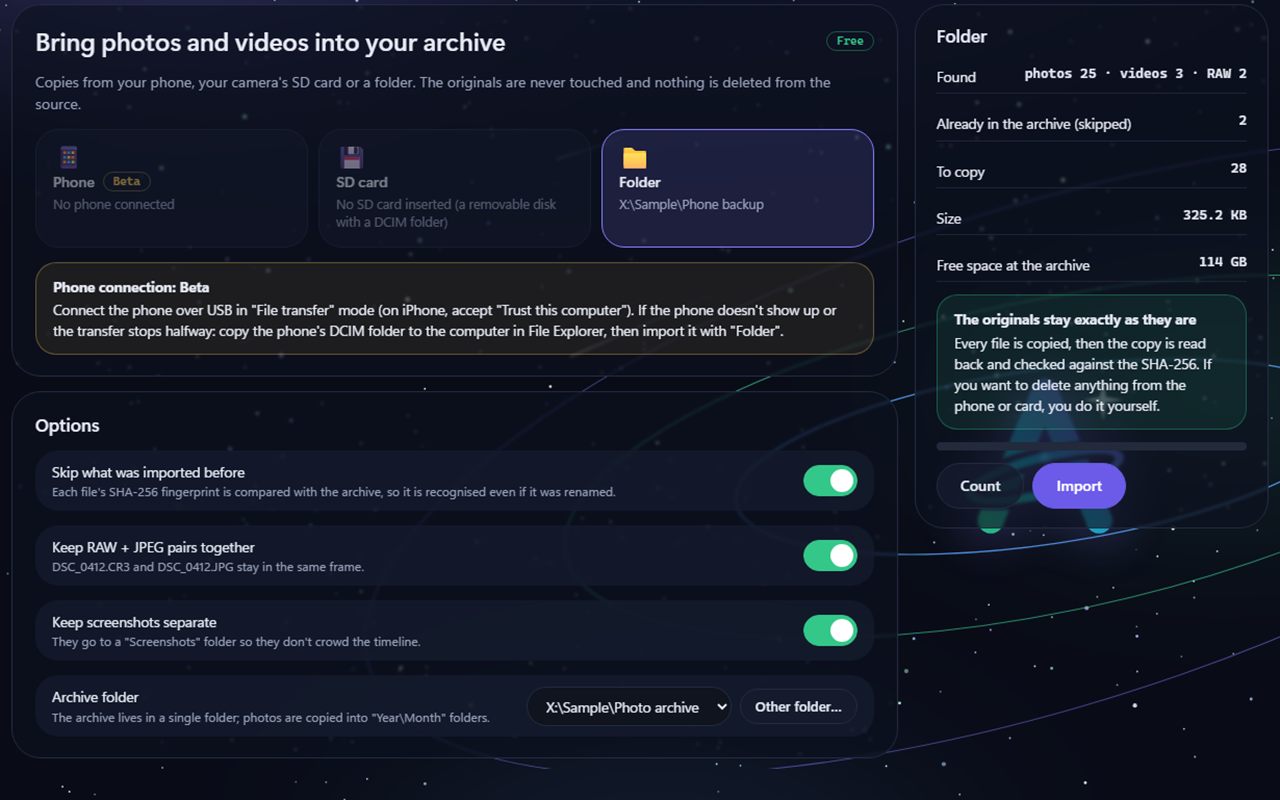
Aurora Photos Import screen: Phone (Beta), SD card and Folder tiles, the originals-stay-as-they-are note, and the Count and Import buttons.
Example view · sample data, taken with test files; names and numbers on screen are examples

Three promises

It copies, verifies, and never deletes for you

Photos are files that cannot be replaced. That is why Aurora Photos moves nothing and never deletes permanently.

Always copies

The copy is first written as a temporary file, flushed to disk, read back and its SHA-256 compared with the one read from the source; only if they match is it moved into place. The source file is opened read-only.

  • In the acceptance run the source files were identical before and after (SHA-256, size, timestamps)
  • Anything imported before is skipped, even if it was renamed
No permanent deletion

A user file goes only to the Windows Recycle Bin; nothing is deleted from the source when importing. The delete code exists only for the program's own files and a test checks this.

  • A removal is logged first and "Undo" puts the file back where it was
  • The Recycle Bin is used only on a local fixed disk

Similar photos are never selected for you

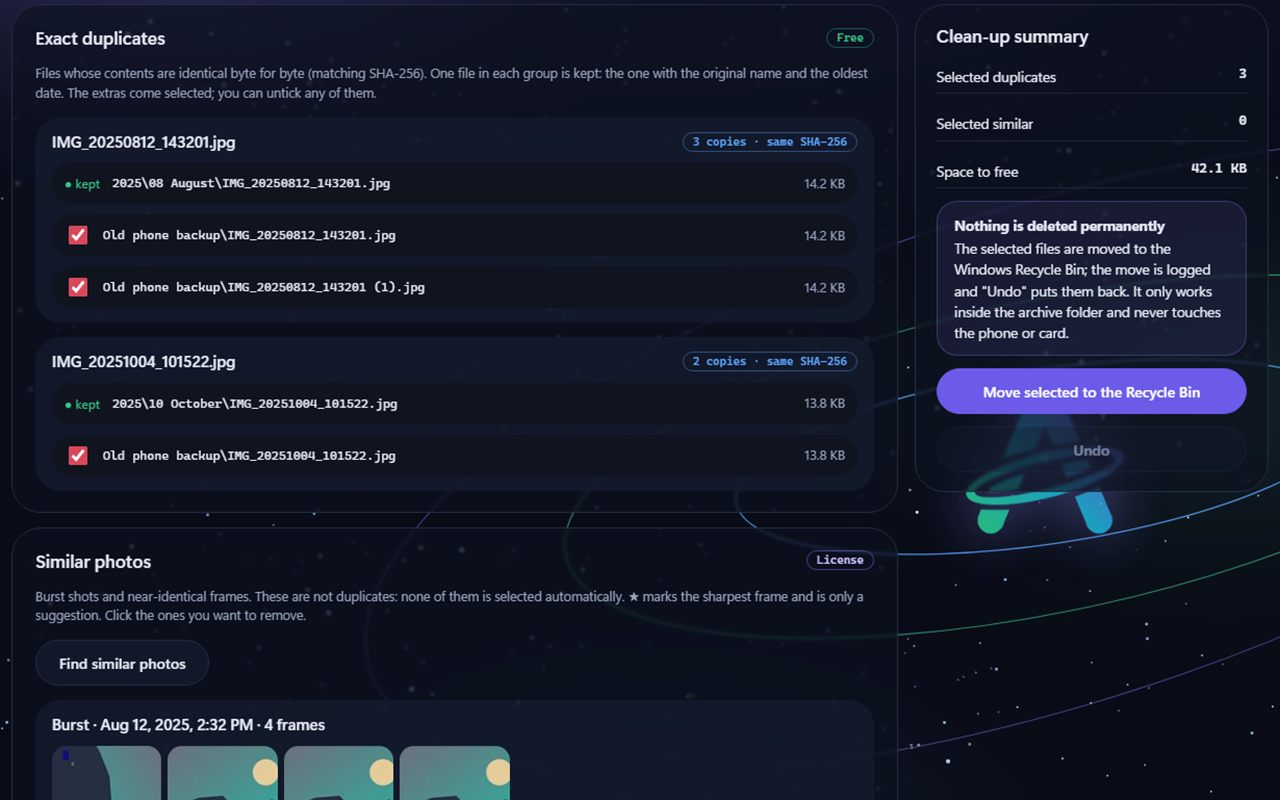
An exact duplicate (identical byte for byte, SHA-256 matches) and a similar photo (a burst shot, a rotated frame) are two different things. Among exact duplicates the extras come selected; among similar photos none is selected automatically, and ★ the sharpest frame is only a suggestion.

  • The whole of a group cannot be selected at once
  • Kept: the one with the original name, then the oldest

How it looks

Import, timeline, duplicates, organize

You move between screens with the tabs at the top. The screens below are example views of the program's real interface, taken with synthetic test files; names and numbers are sample data.

Aurora Photos Import: Phone (Beta), SD card, Folder, options, and on the right the counts found, to skip and to copy.
ImportYou pick a folder, SD card or phone; "Count" shows how many files were found, how many are already in the archive and the free space, then "Import".
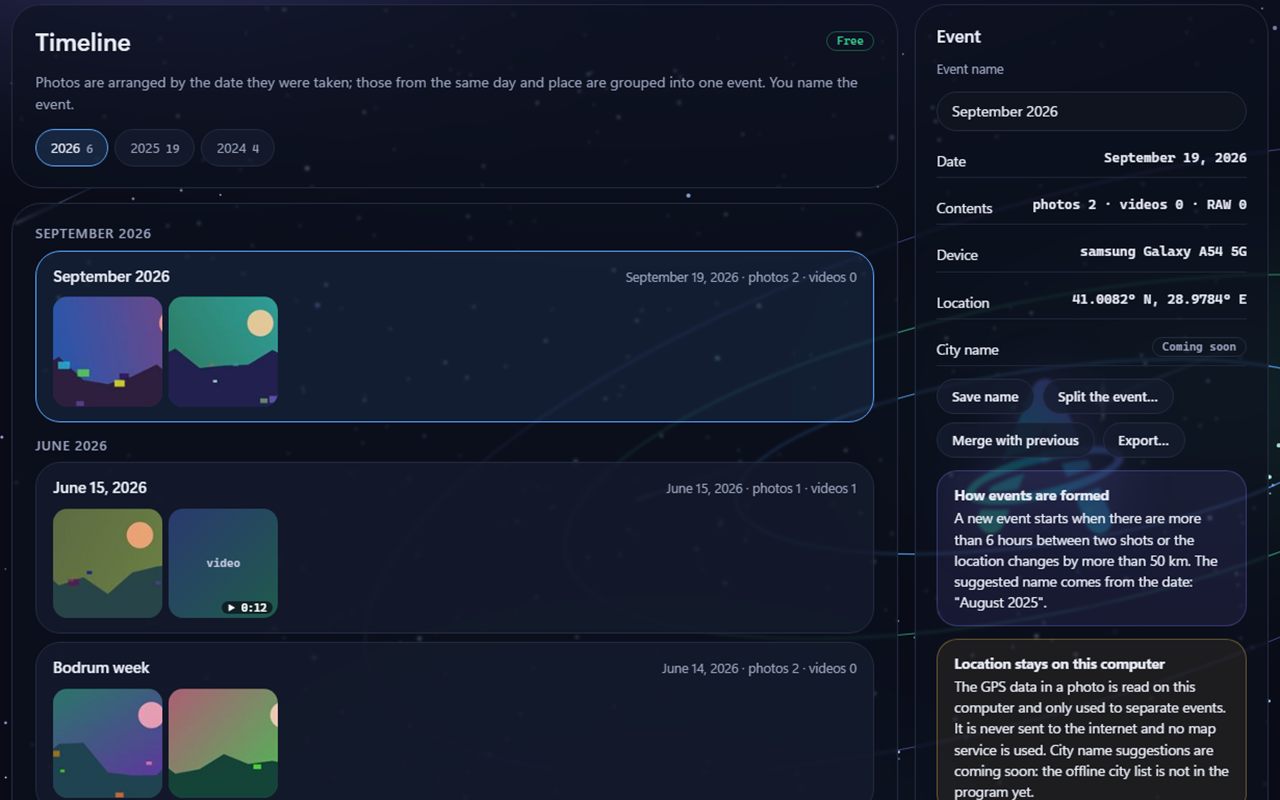
Aurora Photos Timeline: year chips, month headings, event cards with thumbnails and event details on the right; a Coming soon badge on the City name row.
TimelinePhotos are arranged by the date they were taken; those from the same day and place become one event. You can name an event, split it or merge it with the previous one.
Aurora Photos Duplicates and similar: groups of copies with the same SHA-256, the kept file, selected extras, the Move selected to the Recycle Bin button and the Similar photos section below.
Duplicates and similarExact duplicates are free; the extras come selected, the selected ones are moved to the Recycle Bin and can be undone. Similar photos (licence) are in a separate section and none is selected automatically.
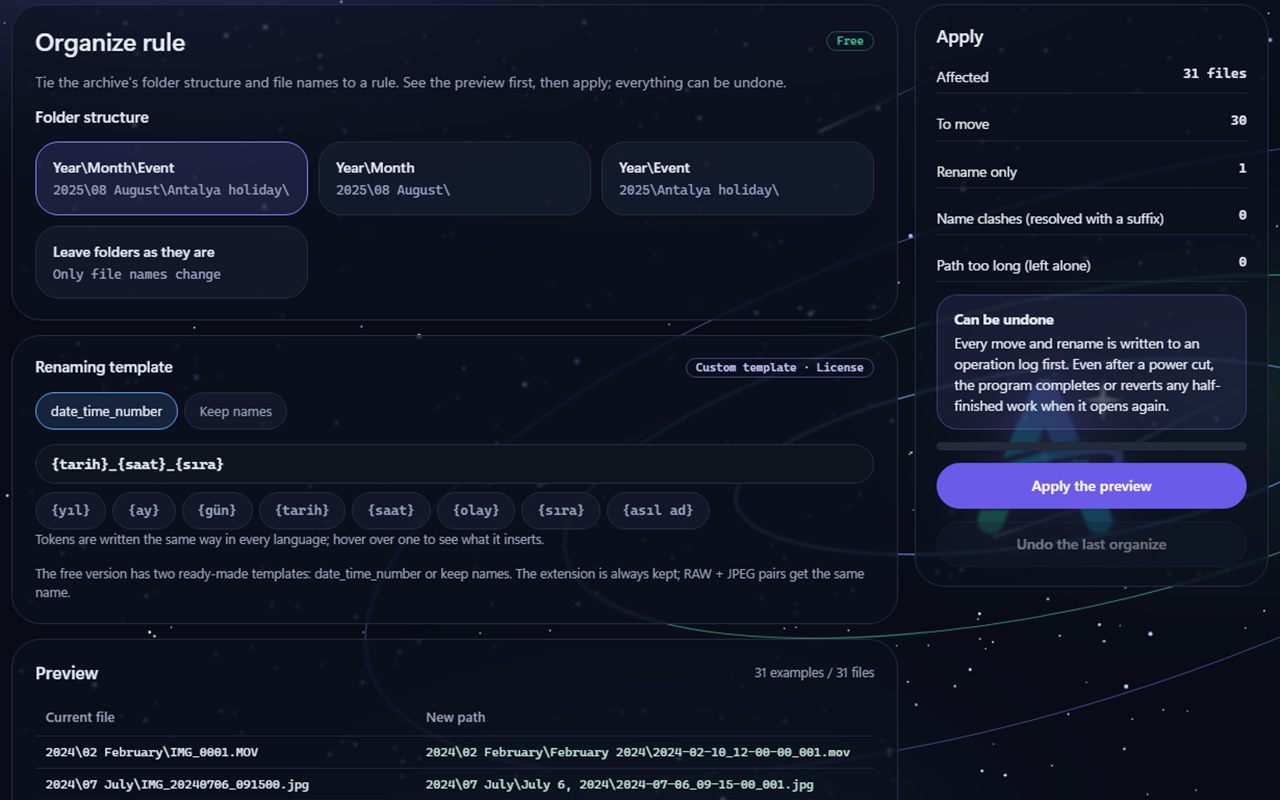
Aurora Photos Organize: folder structure options, the renaming template, on the right the counts affected, the Apply the preview and Undo the last organize buttons, and the preview table below.
OrganizeYou tie the archive's folder structure and file names to a rule. You see a preview first, then apply it; everything can be undone.

What it can do

Imports, groups, organizes, deletes nothing

Features with a Beta badge were coded and tested in a test environment but have not yet been fully tried in real conditions. The feature with a Coming soon badge is not in the program yet.

Importing from a folder and an SD card

Copies from a folder or from the DCIM folder of a removable disk. The target is "Year\Month" folders (for example 2025\08 August); screenshots go to a separate folder; a RAW + JPEG pair stays in the same frame. The "Count" preview shows how many files were found, will be skipped and will be copied, the size and the free space.

Importing directly from a phone Beta

When you connect the phone over USB in "File transfer" mode (MTP) it copies the contents, read-only. The code is written and the device list was tested with real devices on this computer; listing and copying content with a real phone has not been tried yet. If the phone does not show up, copy its DCIM folder with File Explorer and import it with "Folder".

Timeline and events

A new event starts when there is a gap longer than the setting (3, 6, 12 or 24 hours; the default is 6) between two shots or the location changes by more than 50 km. You name the event; the suggested name comes from the date ("August 2025"). You can split an event, merge it with the previous one or export it.

Location stays on this computer

The GPS data in a photo is read on this computer and used only to separate events. It is never sent to the internet and no online map is used. The "remove location when sharing" option clears the GPS and XMP data from a JPEG when exporting.

Exact duplicates

Files identical byte for byte are found by size and then SHA-256. One file in each group is kept (the one with the original name, then the oldest); the extras come selected. The selected ones are only moved to the Windows Recycle Bin and come back with "Undo".

Similar photos (licence)

Finds burst shots and near-identical frames; a rotated copy counts as similar, not as exact. None is selected automatically; ★ the sharpest frame is only a suggestion. This feature needs a licence.

Organize rule, preview, undo

The structure is "Year\Month\Event", "Year\Month", "Year\Event" or leave the folders alone; the name template is date_time_number or keep names. You preview first, then apply, and "undo" returns to the old state. Every move is written to an operation log first; even after a power cut, when the program is reopened the job is either entirely old or entirely new, and no file is lost. A custom template needs a licence.

21 languages Beta

The interface is available in 21 languages; Arabic and Urdu are shown right to left. The translations passed automatic checks and a back-translation check; review by native speakers is still under way.

City name suggestions Coming Soon

Suggesting a city name such as "Antalya — August 2025" from a photo's GPS coordinates needs an offline city list; that list has not been added to the program yet. For now the event name is suggested from the date only.

Measured, written down

We checked that the source stayed unchanged by comparing before and after

On 11 October 2026 an acceptance run was done on a real computer with normal user rights (not administrator). All tests used synthetic files made by the program itself; your own photos were never touched.

We checked that the source stayed unchanged by comparing before and after
TestedResultHow it was verified
Acceptance run (normal user rights)18 steps passed, 0 failed, 1 skippedThe skipped step is a real phone and SD card: no device was connected
Importing and verification20 files found, 18 copied, 0 errorsA 21-file synthetic source; 2 repeated items in the source were counted
The source stayed unchangedAll 21 files identical before and afterSHA-256, size and timestamps were compared
Copies match the sourceAll 18 archive files are identical byte for byte to the sourceFile-by-file comparison
Second import20 files imported earlier were skippedSHA-256 match; recognised even if renamed
Timeline and exact duplicates9 events; 1 group of copies, 1 extra fileThe event rule and SHA-256 matching
Organize and undo19 files affected, 0 lost, contents identical; after undo the archive was exactly as beforePreview summary, content comparison and an undo check
Killing the program in the middle of organizingThe result was entirely old or entirely new, 0 lostAll 7 of 7 tests passed; the absence of permanent deletion was also checked in the source code
Recycle BinMoving and undoing workedWith a file in the test folder only; all 3 of 3 tests passed
Scale100,000 files: first scan 5.2 s, incremental second scan 0.8 s (0 re-read), peak memory 328 MBThe files were small (64-byte) synthetic files; with real 4 MB photos the first scan depends on the disk's read speed
Panel securityForeign requests were rejectedOnly 127.0.0.1, cookie sign-in, CSP; a request without the required header got 403, one without a cookie got 401
Build tests and mutation runUser 40/40, Administrator 9/9, installer 61/61; all 38 of 38 inserted faults caughtTest suites that run during the build and deliberately inserted faults
  • A phone (MTP) and an SD card were not tried with a real device; this step was skipped in the acceptance run. The first real phone test will be yours.
  • The HEIC and CR3 readers were tested only with synthetic files; they have not been verified with real iPhone HEIC and Canon CR3 samples.
  • These are measurements made on a single computer; they do not promise the same result on every computer. The installer has so far been tested only in test mode.

What we leave out on purpose

What we do not do, and should not

We leave out things that are common in photo apps but could harm your privacy or your data.

No face recognition

Faces in your photos are not scanned, people are not grouped and nobody is matched.

No cloud and no online map

Your photos are not uploaded anywhere; location data is never sent to the internet and no map service is used. The internet is used only for licence verification and update checks.

No permanent or automatic deletion

There is no code that deletes a user file other than moving it to the Recycle Bin, and similar photos are never selected on their own. You always decide what is removed.

Limits

What it does not do

Knowing what an archive program cannot do matters as much as knowing what it does. We say these up front:

Aurora Photos organizes only the archive you copied into; it does not touch the originals on the phone or card. It is not a backup program: you still need to back up the archive folder yourself.

  • A phone (USB/MTP) and an SD card were not tried with a real device; the iPhone folder layout can vary.
  • The HEIC and CR3 readers were tested only with synthetic files. If a HEIC file keeps its GPS data somewhere else, it can be missed.
  • No city name suggestions (Coming soon); the event name is suggested from the date only.
  • The date of a video is read from the file and converted to this computer's time zone; there is no per-device clock offset correction yet.
  • Candidates for similar photos are searched in a ±2 day date window; similar photos with very different dates can be missed.
  • "Remove location when sharing" applies only to JPEG and MP4/MOV; location data in HEIC, RAW, PNG and iPhone MOV files is not copied.
  • The Recycle Bin is used only on a local fixed disk; if the bin is off or the file does not fit, Windows shows its own warning.
  • OneDrive "on demand" and other offline files are not read; they are counted but not imported.
  • The 100,000-file measurement used small synthetic files; with real photos the first scan depends on the disk's read speed.
  • It has not yet been tested on Windows 10; the acceptance tests were run on Windows 11.

Free use and licence

Importing and verifying are free

Importing and verification, the timeline and events, exact duplicates and the ready-made organize templates are free. A licence is needed for similar photos, a custom name template, asking when a phone is plugged in, and more than one archive. Aurora Photos is not sold separately: it comes with the Aurora One Licence.

For everyone

Free use

Free

Import, verify and organize.

  • Importing and SHA-256 verification
  • Timeline, events, names
  • Exact duplicates
  • Ready-made organize templates and undo
  • Not included: Similar photos
  • Not included: Custom name template
  • Not included: Ask when a phone is plugged in
  • Not included: More than one archive

All programs, one licence

With the Aurora One Licence

Find similar photos and customise the rule. The same licence covers every Aurora One program.

  • Everything in free use
  • Similar photos
  • Custom name template
  • Ask when a phone is plugged in
  • More than one archive
  • If you open a locked feature while unlicensed, the program says a licence is required; none of your files are touched.
  • The licence is verified over the internet at least every 14 days; only the licence key and a digest of the device ID are sent. Nothing from your photos or your location data is sent.
  • Download and purchase: coming soon. Aurora Photos is currently in beta testing; the installer will appear on this page when it is ready.
  • The installer is not code-signed yet; Windows may show a SmartScreen warning on first run. Code signing will be added before release.

Aurora One Licence This program is covered by the Aurora One Licence: one licence for every Aurora One program.

See pricing

System requirements

What you need

Operating system
Windows 10 (version 1803 or later) or Windows 11Acceptance tests were run on Windows 11; Windows 10 has not been tested yet.
Installation
Installer (.exe)The download link will appear on this page when it is ready.
.NET Framework
4.7.2 or laterIncluded with Windows 10 (1803 and later) and Windows 11.
Rights
Works with normal user rightsAdministrator permission is not needed.
Archive disk
A local diskThe Recycle Bin is used only on a local fixed disk.
Internet
Archiving works offlineThe internet is used only for licence verification and update checks.

FAQ

Frequently asked questions

Will the photos on my phone or card be deleted?

No. Aurora Photos always copies; the source file is opened read-only and nothing is deleted from the source. Each copy is read back and verified with SHA-256. If you want to delete from the phone or card, you do that yourself.

What is the difference between an exact duplicate and a similar photo?

An exact duplicate is a file identical byte for byte (the SHA-256 matches); the extras come selected. A similar photo is a different file that looks almost the same, such as a burst shot or a rotated frame; these are shown in a separate section and none is selected automatically. ★ the sharpest frame is only a suggestion.

Can files be deleted permanently?

No. There is no code that permanently deletes a user file. Removal is only a move to the Windows Recycle Bin, it is logged and "Undo" puts the file back where it was.

Is my location data sent anywhere?

No. GPS data is read on this computer and used only to separate events. There is no online map and no cloud; your photos and your location are not sent to the internet. City name suggestions are not there yet (Coming soon).

Does it recognise faces and group by person?

No, deliberately. There is no face recognition.

Does importing directly from a phone work?

Beta: the code is written and the device list was tested with real devices on this computer, but copying content from a real phone has not been tried yet. If the phone does not show up or the transfer stops halfway, copy the phone's DCIM folder to the computer with File Explorer and import it with "Folder".

Can I try it before buying?

Yes. Importing, the timeline, exact duplicates and ready-made organizing are free; similar photos, a custom name template, asking when a phone is plugged in and more than one archive need a licence.

Aurora Photos is not sold separately; it is used with the Aurora One Licence, which covers every Aurora One program. Download and sales are not open yet.

Our other products

Another tool built on the same principles

All of our products are designed for Windows and are local-first.

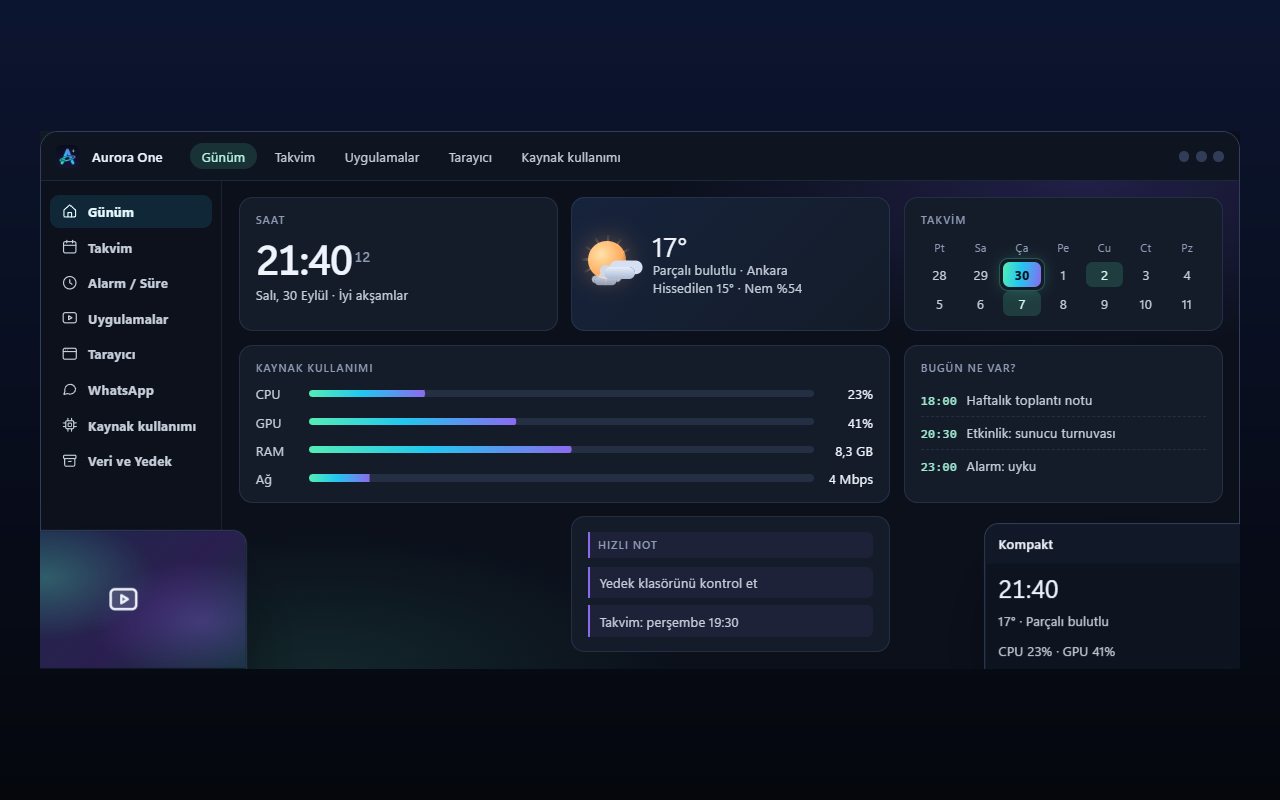
Representative view of the Aurora One App Today screen: section menu on the left, clock, weather, calendar and resource usage cards in the middle.Representative interface

Aurora One App

Windows 10 and 11 (64-bit)

Status: Sales and beta applications are not open yet

Brings the tools you open every day—from calendar and browser to WhatsApp, media apps and system monitoring—into one Windows application; your records stay on your computer.

  • One hub
  • Local records
  • Modular
  • Turkish only
Explore: Aurora One App
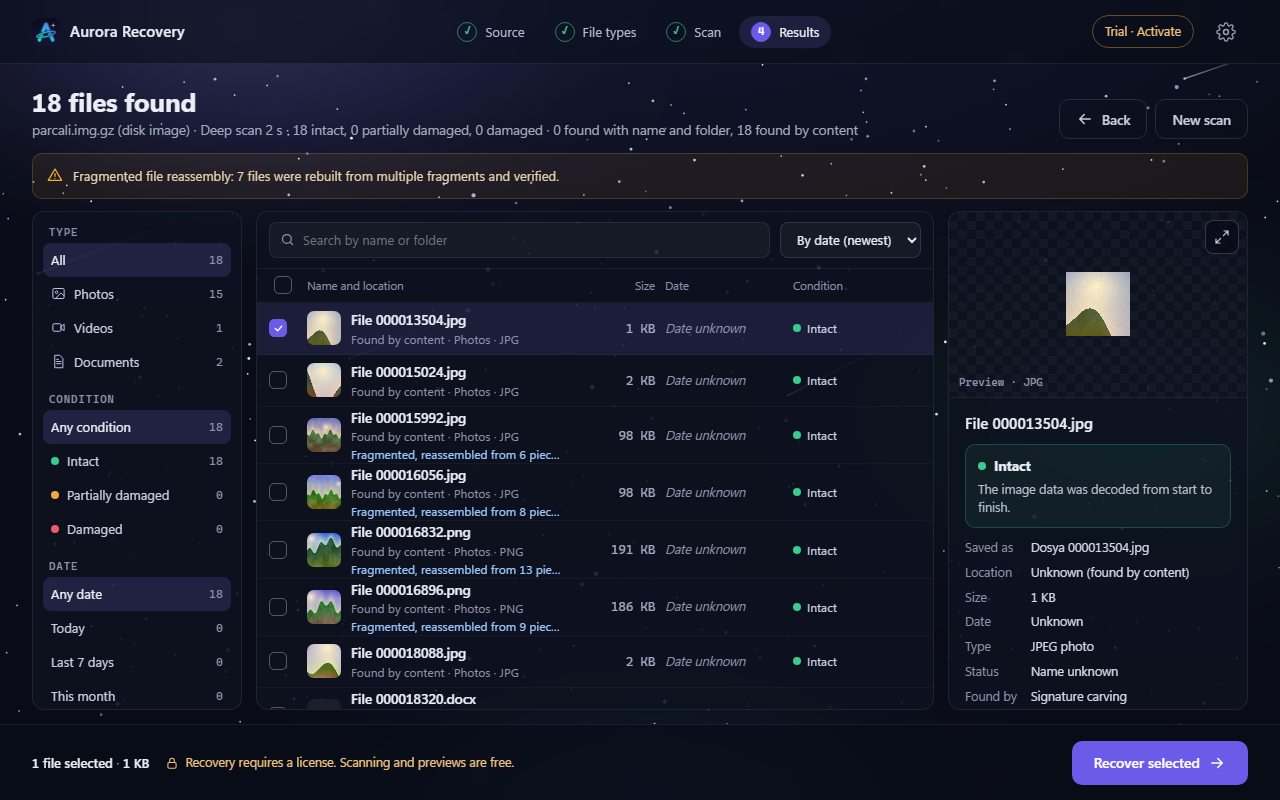
Sample view of the Aurora Recovery results screen: list of found files, each with an integrity label, and a preview pane on the right.Sample view

Aurora Recovery

Windows 10 (1607+) and Windows 11

Status: In final acceptance testing

Finds photos, videos and documents lost to deletion, formatting or corruption on USB drives, SD cards and disks—and tells you whether each file will open before you recover it.

  • Never writes to the disk
  • Honest labels
  • Free scan
  • 21 languages
Explore: Aurora Recovery
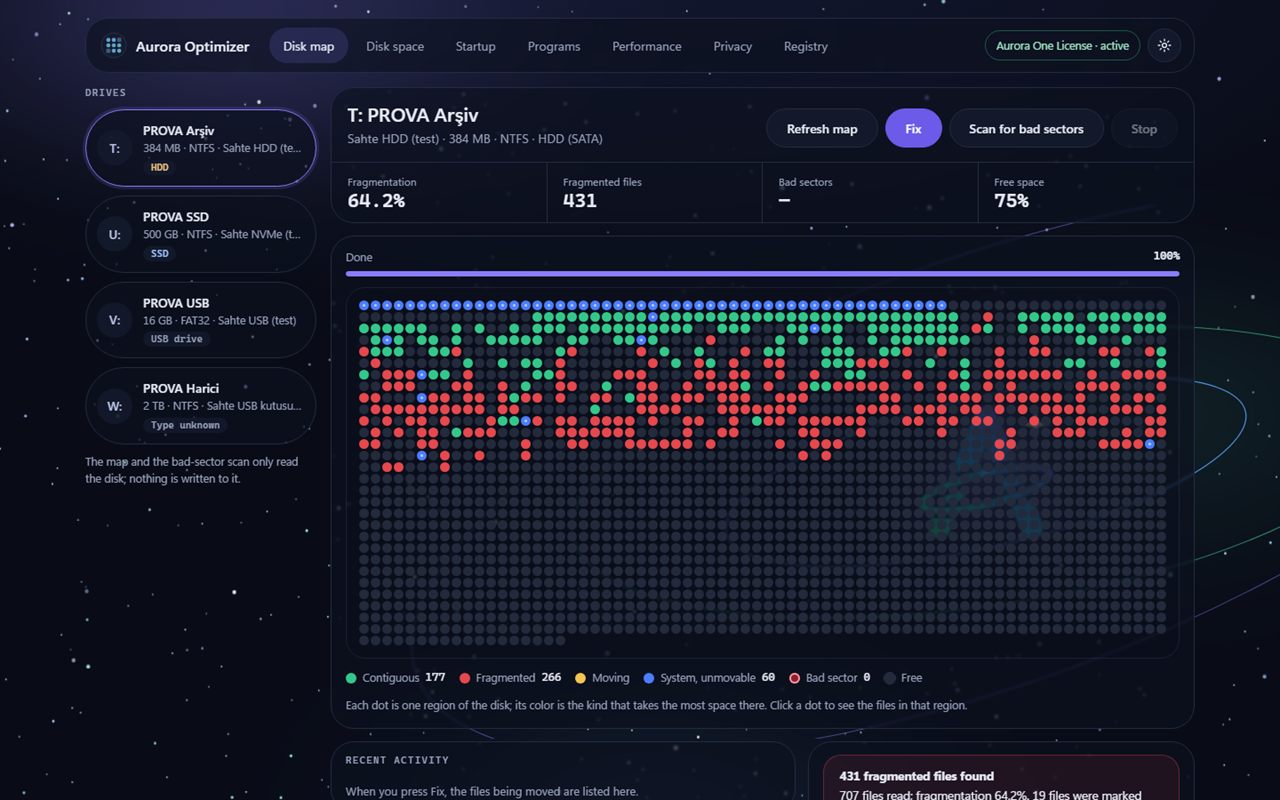
Sample view of the Aurora Optimizer disk map: test drives on the left, a map of coloured dots showing contiguous, fragmented and system regions in the middle, and the Fix button at the top.Sample view

Aurora Optimizer

Windows 10 (1607+) and Windows 11

Status: Beta · download coming soon

Examines your disk, free space, startup, programs and registry, and tells you what it suggests and why. It changes nothing until you choose, backs up every change first and keeps it reversible.

  • Backed up, reversible
  • No made-up numbers
  • Free scanning
  • 21 languages
Explore: Aurora Optimizer
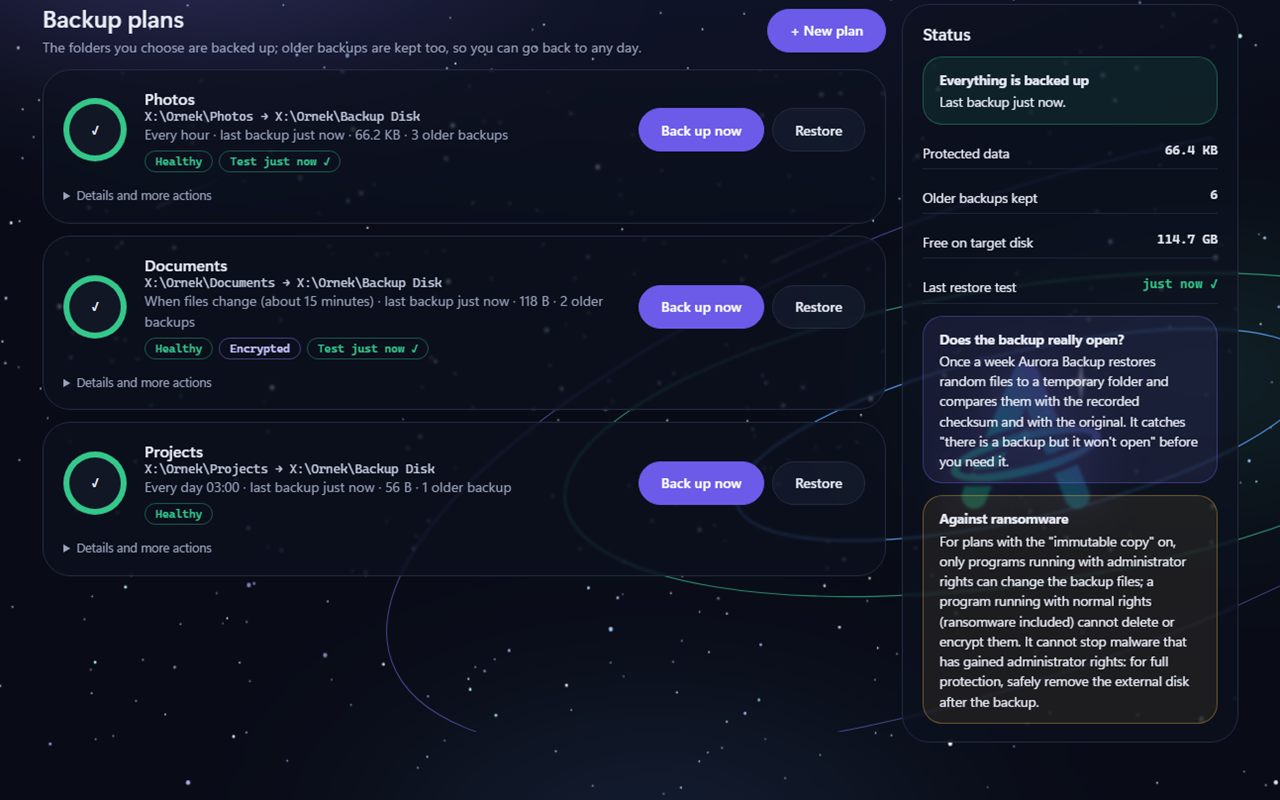
Example view of the Aurora Backup backup plans screen: three plans, each with Back up now and Restore buttons and a Healthy label; on the right, boxes explaining whether the backup really opens and the immutable copy against ransomware.Example view · sample data

Aurora Backup

Windows 10 and Windows 11

Status: Beta · download coming soon

Backs up the folders you choose to an external disk, a second disk or a network folder, keeps older backups too, and lets you go back to any day. It tests regularly that the backup really opens, and when restoring it never overwrites an existing file.

  • Restoring is always free
  • Tests that backups open
  • Never overwrites
  • 21 languages
Explore: Aurora Backup
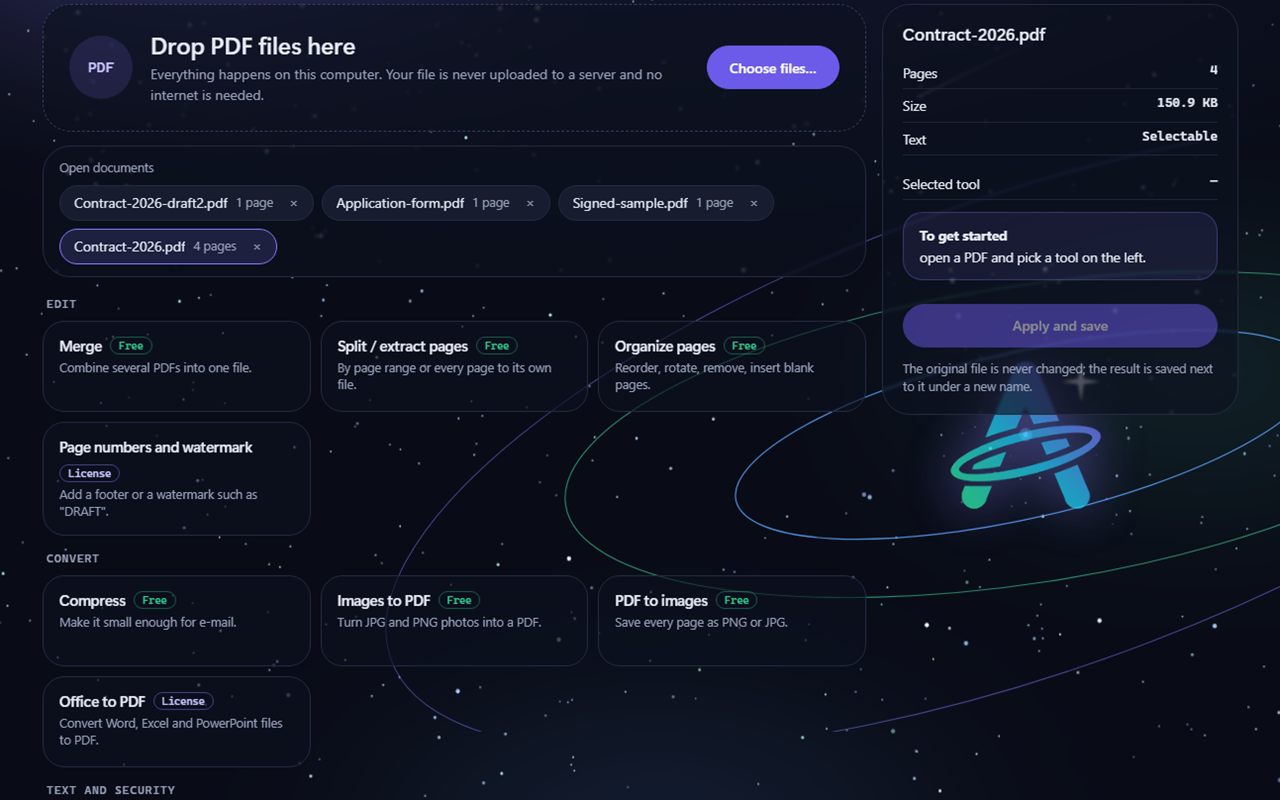
Example view of the Aurora PDF tools screen: a PDF drop area, open documents and tool cards labelled Free or Licence such as Merge, Split, Organize pages, Compress, Images to PDF and Office to PDF.Example view · sample data

Aurora PDF

Windows 10 and Windows 11

Status: Beta · download coming soon

Merges, splits, compresses and edits PDFs; truly removes personal information, adds passwords and signs electronically. Everything happens on your computer; your file is never uploaded to a server and the original is never overwritten.

  • Everything offline
  • True redaction
  • Never touches the original
  • 21 languages
Explore: Aurora PDF
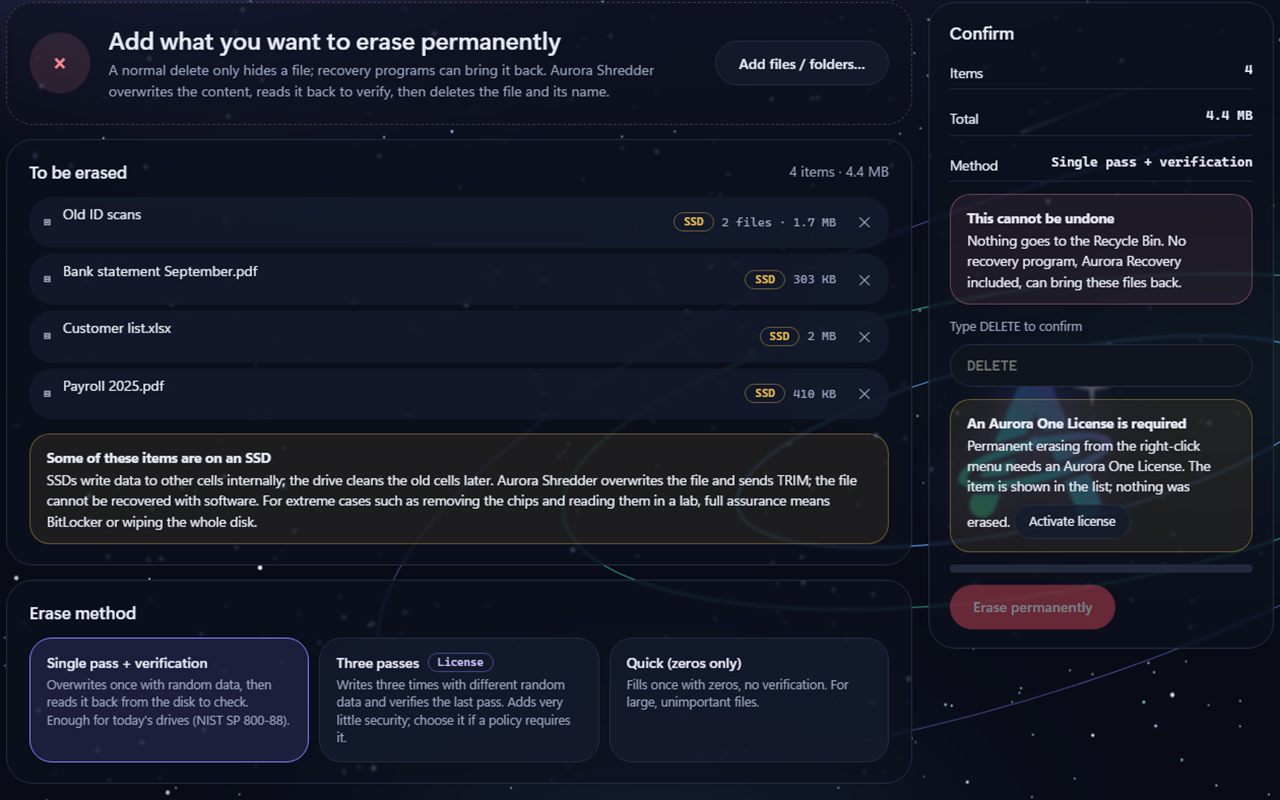
Example view of the Aurora Shredder Erase files screen: four items to erase, an SSD notice, the Single pass and verification method, a type-DELETE confirmation box and an Erase permanently button.Example view · sample data

Aurora Shredder

Windows 10 and Windows 11

Status: Beta · download coming soon

Overwrites a file's content, reads it back to verify, then deletes the file and its name; it also cleans free space and whole disks. It does not go to the Recycle Bin, and no recovery program, Aurora Recovery included, can bring it back. It tells you the limit on SSDs up front.

  • Overwrites, verifies
  • Never wipes the system disk
  • SSD limit stated
  • 21 languages
Explore: Aurora Shredder
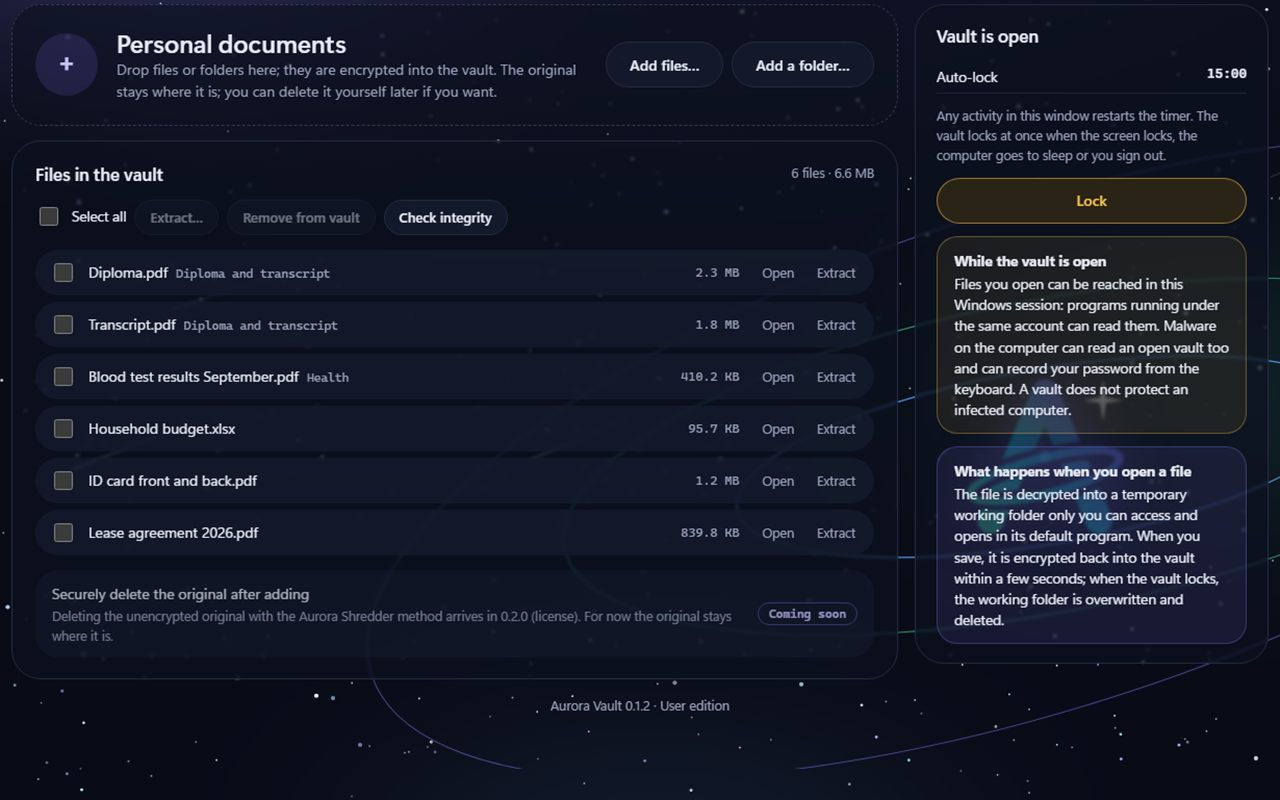
Example view of the Aurora Vault open-vault screen: six files in the vault, the auto-lock timer, the Lock button and the warning that malware can read an open vault.Example view · sample data

Aurora Vault

Windows 10 and Windows 11

Status: Beta · download coming soon

Puts your private files in an encrypted folder locked with a password: file contents and file names are encrypted with AES-256-GCM. If you lose both your password and your recovery key, we cannot open the vault either. It says up front that malware can read a vault while it is open.

  • AES-256-GCM, Windows CNG
  • No back door
  • Limits stated
  • 21 languages
Explore: Aurora Vault

Back to the home page