Aurora Optimizer · Maintenance and speed-up for Windows
Honestmaintenanceand speed-up for Windows.
Aurora Optimizer examines your disk, free space, startup, startup programs and registry, and tells you in plain language what it found and why it suggests a change. It changes nothing until you choose; it backs up every change first and lets you undo it from History. When it cannot measure something it says "unknown" instead of making up a number.
Backed up every change is backed up first and can be undone from History
SSD never defragmented; Windows' own TRIM command is used
57/58 steps passed in an acceptance run on a real computer
Free scans, maps and suggestions
Sample view · taken with test drives; names and numbers on screen are examples
Three promises
It shows you first, then you decide
The biggest risk in maintenance software is sweeping changes made without asking. That is why Aurora Optimizer only looks first.
Nothing changes until you choose
Scans only read. Nothing is pre-selected in the cleanup, leftover or duplicate lists; every suggestion says what it is, why it is suggested and what will be done.
Windows components and Microsoft services are locked
Risky actions need a separate confirmation window
Every change is backed up
Registry changes are first saved to a .reg file and leftover folders to a ZIP archive; if the backup cannot be written, nothing is deleted. A system restore point is also created before changes.
One-click undo from History
Undo never needs a licence
It does not claim what it cannot prove
Startup time and startup impact are read from Windows' own records; if they cannot be read it says "unknown". If startup did not get noticeably shorter after a change, it says "No clear gain".
No speed percentages or scores
Before-and-after comparison uses Windows' own measurement
What it looks like
Disk, space, performance, startup
Tabs at the top switch between sections; every screen shows the current state first and the buttons that change something come last. The screens below are sample views of the real interface, taken in a test environment with test drives and sample programs; names and numbers are examples.
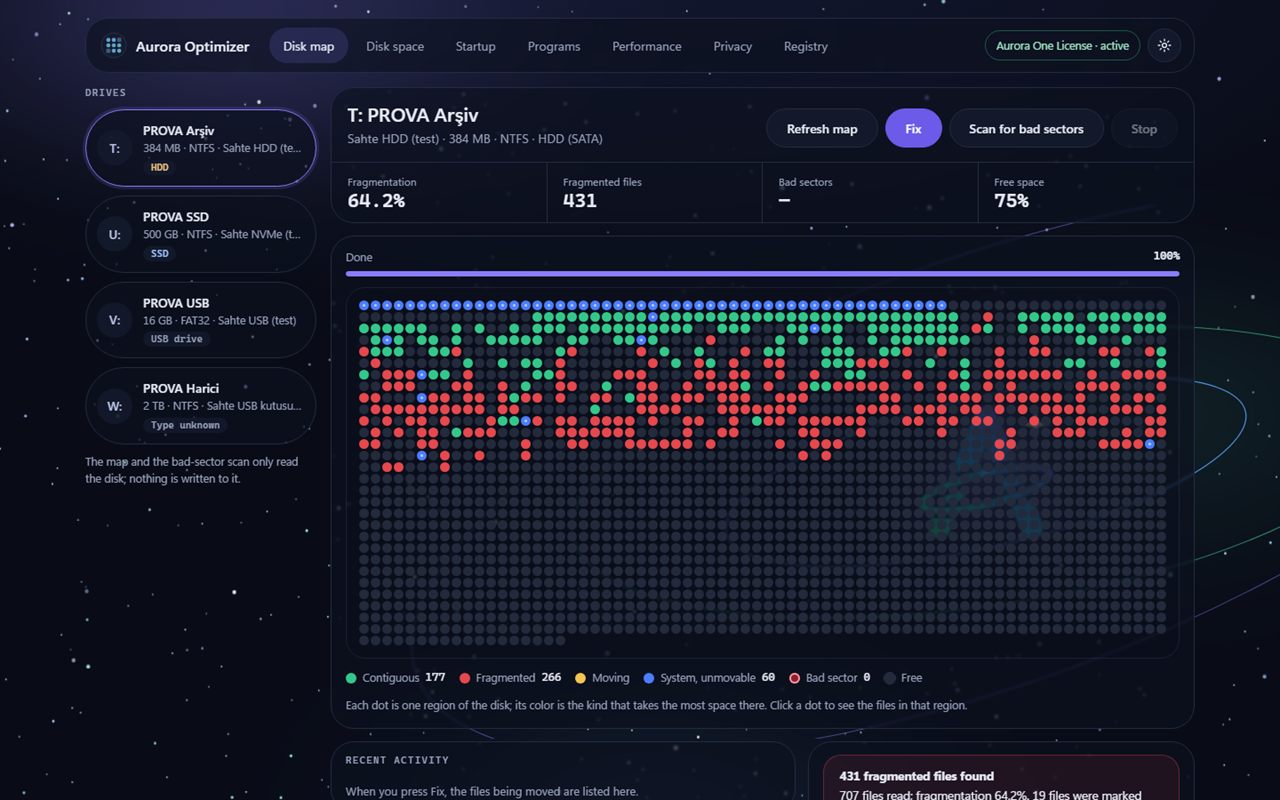
Disk mapEach dot is a region of the disk: contiguous, fragmented, system or bad sector. On an HDD, Fix defragments; on an SSD, TRIM is suggested instead.
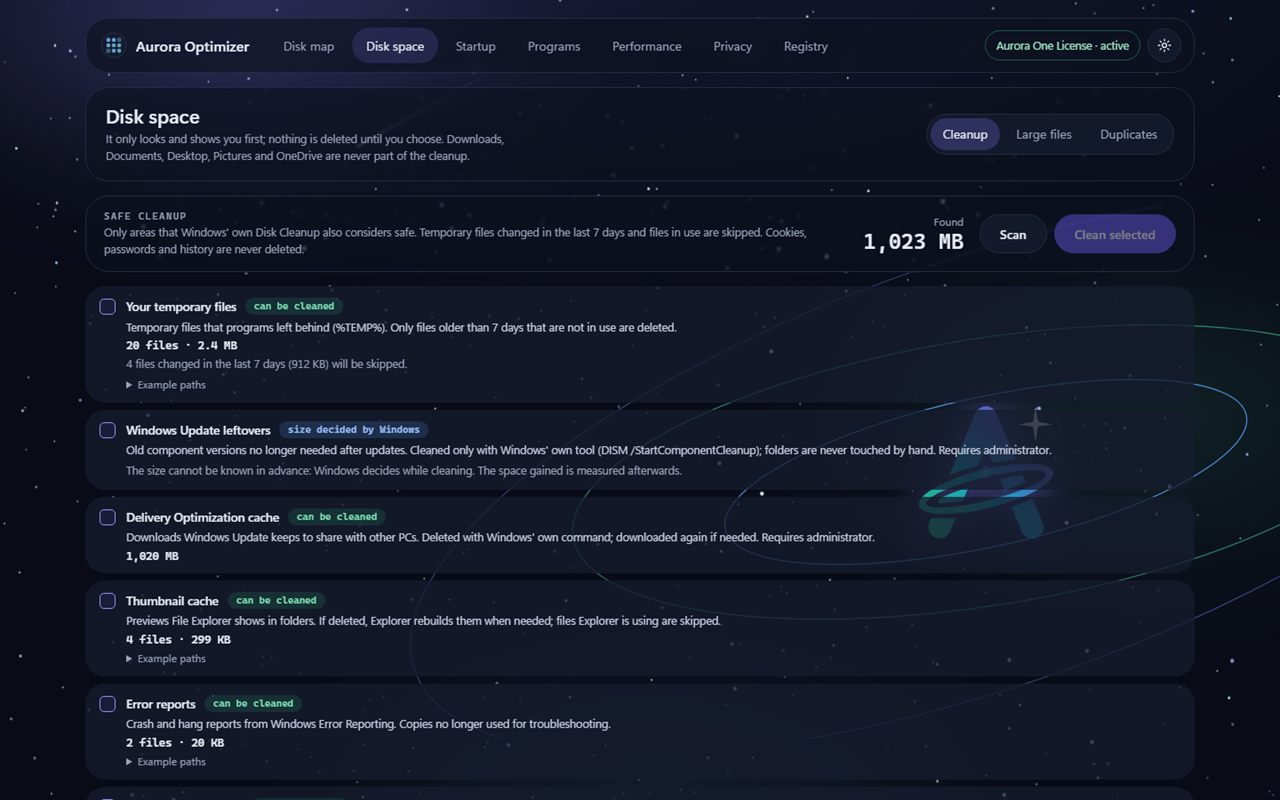
Space · safe cleanupOnly areas that Windows' own Disk Cleanup also treats as safe. No category is pre-selected.
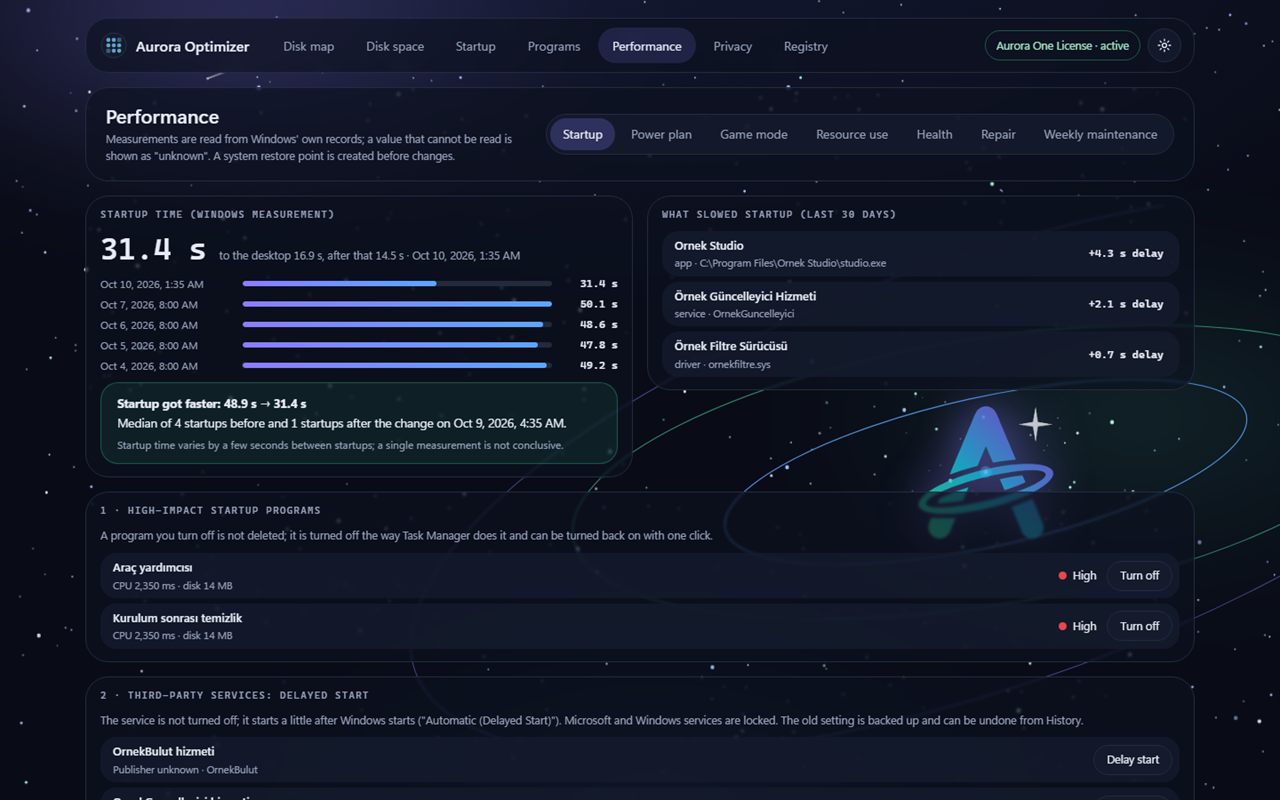
Performance · startupStartup time and what slowed it are read from Windows' own records; startups before and after a change are compared.
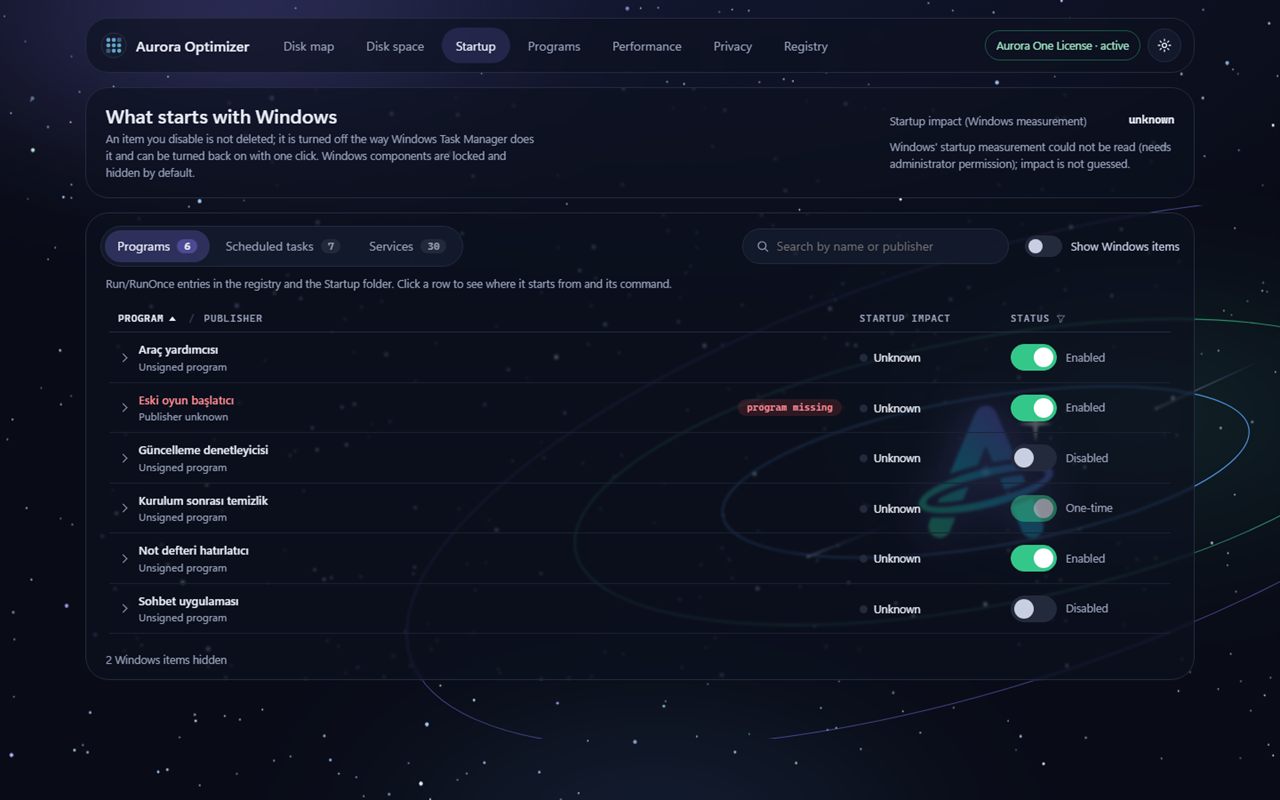
StartupAn item you disable is not deleted; it is turned off the way Task Manager does it and can be turned back on with one click.
What it can do
From the disk to the registry, maintenance in one window
Features with a Beta badge are built and tested in a test environment, but have not yet been tried with real programs in the acceptance run on a real computer.
Disk map and HDD defragmentation
Shows which regions of the disk hold contiguous, fragmented or system files; click a dot to list the files there. On an HDD, defragmentation uses the safe file-moving path Windows provides: each file is re-read at every step, the job can be stopped at any time, and system and in-use files are skipped.
No defragmenting on SSDs, TRIM instead
Whether a drive is an SSD or HDD is read from Windows' device information. Defragmentation is never suggested on an SSD; Windows' own optimise tool is run with the TRIM command instead. Disk health (temperature, wear) and a read-only bad sector scan are here too.
Safe disk cleanup
Temporary files (older than 7 days and not in use), Windows Update leftovers and the Delivery Optimization cache are cleaned with Windows' own commands; the thumbnail cache, error reports, browser caches and the Recycle Bin with separate confirmation. Downloads, Documents, Desktop, Pictures and OneDrive, and cookies, passwords and browser history are never cleaned.
Large file map
Shows the folders taking the most space and the 100 largest files on the drive or folder you choose; every row has "Show in Explorer". There is no delete button on this screen: you decide what goes.
Duplicate files
An exact duplicate is a file with the same content hash (SHA-256); name and date do not count. The same photo at a different size or quality is shown separately as a "similar image" and none of them is selected automatically. Selected files only go to the Recycle Bin; the last copy in a group cannot be selected.
Startup time and what slows it
Recent startup times and the apps, services and drivers that slowed startup are read from Windows' measurement. It suggests turning off high-impact startup programs, setting third-party services to "Delayed start" and the Fast Startup setting; services are never turned off.
Power plan and resource use
Switches between the power plans already in Windows (no new plan is created). Shows the top 10 users of processor, memory and disk; the program never ends a process.
Health, Windows repair and restore point
Disk health and Windows Security status (with a warning if protection is off) are shown on one card. Windows files are checked and repaired with Windows' own tools (DISM and SFC). A system restore point is created automatically before changes; if Windows did not create one, it says so.
Registry maintenance
This is not a "registry cleaner". It only finds broken entries proven to point to a file or program that no longer exists, and explains what they are and why in plain language. Each entry is re-checked and backed up before it is applied.
Startup
Programs that start with Windows, the Startup folder, tasks that run at sign-in and automatic services in one list. The publisher is read from the program's digital signature; Windows components are locked.
Uninstalling programs and leftover cleanup Beta
Removes a program with its own uninstaller, then finds leftover folders and registry keys using exact matches only. Leftovers are backed up first, deleted when you choose, and can be restored from History. Windows components cannot be removed.
Program updates (winget) Beta
Lists the updates found by Windows Package Manager; you choose which to install, and each update runs one by one with confirmation. There is no bulk "update all".
Weekly maintenance Beta
If you turn it on, it scans once a week and only reports: space that can be freed, new high-impact startup items, broken registry entries and disk health warnings. It never applies anything by itself; turning it off deletes the task.
Game mode Beta
Asks the open apps you select to close and switches to the High performance plan if there is one. An app that refuses to close stays open; nothing is force-closed. Turning game mode off restores the old power plan and reopens the apps it closed.
Battery report Beta
On laptops, the battery's current capacity against its design capacity and its charge cycles are read from Windows' battery report. Without a battery this section does not appear.
Privacy settings Beta
Advertising ID, suggested content, tips and similar Windows settings on separate cards; each card shows what changes and the Windows default. Only your own user account's settings change; the old value is backed up and can be restored.
21 languages Beta
The interface is available in Turkish, English and 19 more languages; Arabic and Urdu are shown right to left. Turkish and English are complete; the other translations have not yet been reviewed by native speakers.
Measured and written down
We tested it on a real computer
On 9 and 10 October 2026, acceptance runs were made with administrator rights on a real computer running Windows 11. Defragmentation was tested on a USB stick with test files written in pieces; the other steps used the computer's own disk and settings. Every change was undone afterwards.
We tested it on a real computer
What was tested
Result
How it was verified
HDD defragmentation · test files written in pieces
Files ended up in one piece
Fragment count with Windows' fsutil tool; SHA-256 of every file identical before and after
Stopping defragmentation halfway
Files stayed intact
SHA-256 values identical after stopping; chkdsk (read-only) found the file system consistent
System disk type (NVMe SSD)
Recognised as an SSD; defragmentation not suggested
Windows device information: NVMe with TRIM support
Delayed start on a third-party service
Applied, then restored
Windows service manager's own query (sc qc)
Trying to delay a Windows service
Refused
Windows services are locked
Power plan switch
Switched, then back to the old plan
Active plan read with powercfg
Registry scan
Nothing in the registry changed
SHA-256 of exports before and after the scan identical
Trying to uninstall a locked Windows component
Refused
The program never ran the uninstaller
Defragmentation, delayed start and power plan change without a licence
None of them happened
The User edition refused without a licence
In the acceptance run on 10 October 2026, 57 of 58 steps passed. The only failing step was the check of the weekly maintenance task: the task was created and deleted correctly, but the acceptance script looked for a setting Windows does not write; the script was fixed.
Uninstalling programs, winget updates, game mode and the battery report were not tried with real programs in this run; that is why they carry a Beta badge.
These are measurements from one computer; they do not promise the same result on every computer.
What we leave out on purpose
Some "boosters" are missing on purpose
We do not add tools that are common in maintenance software but show no measurable benefit or can do harm.
No RAM cleaner
Windows uses spare memory as a cache and frees it itself when needed. Forcing memory free can make programs load again shortly afterwards and slow things down.
No registry "boost"
Extra entries in the registry do not slow Windows down measurably; deleting them in bulk can break programs. That is why we only suggest proven broken entries and back them up first.
No internet booster
Your connection speed is set by your internet provider and your network. Tweaking Windows network settings usually makes no difference and sometimes breaks the connection.
Limits
What it does not do
Knowing what a maintenance program cannot do matters as much as knowing what it does. We say it up front:
We do not promise speed. We show whether a change helped by comparing startups before and after it with Windows' own startup measurement, and if the difference is small we say so.
The disk map and defragmentation work only on NTFS drives; FAT32 and exFAT are not supported.
It never defragments SSDs; on an SSD it only runs Windows' TRIM command.
It finds and shows bad sectors but does not repair them.
The disk map, defragmentation, startup measurement and system-wide changes need administrator permission; without it the value stays "unknown".
Startup time varies by a few seconds from one start to the next; a single measurement is not conclusive.
It shows running processes but never ends them; it never turns services off, it only delays their start.
Game mode only asks apps to close; programs cannot turn off Windows notifications, so it only opens the notification settings.
Program updates need Windows Package Manager (winget); when you install an update you accept the publisher's licence agreement.
Free use and licence
Scan, look, then decide
Scans, maps, measurements and suggestions are always free. A licence is needed to apply a change (defragment, clean up, uninstall, change a setting). Aurora Optimizer is not sold separately: it comes with the Aurora One Licence.
For everyone
Free use
Free
Scan your computer, see the maps and suggestions, and know what would be done.
Disk map, disk health and bad sector scan
Cleanup scan, large file map and duplicate scan
Startup measurement, resource use and health summary
Startup, service and program lists; registry suggestions
Windows check (DISM and SFC, check only)
Undo from History
Not included: Defragmentation and TRIM
Not included: Cleanup and moving duplicates
Not included: Startup, service and power plan changes
Not included: Uninstalling, leftover cleanup and updates
Every program, one licence
With the Aurora One Licence
Apply the suggestions. The same licence covers every Aurora One program.
Everything in free use
HDD defragmentation and TRIM for SSDs
Disk cleanup and moving duplicates to the Recycle Bin
Startup, delayed start, power plan and Fast Startup changes
Applying registry suggestions and Windows repair
Uninstalling programs, backed-up leftover cleanup and winget updates
Game mode, weekly maintenance and privacy settings
Undo is always free: even if your licence ends, you can undo your changes from History.
The licence is checked online at least once every 14 days; only the licence key and a hash of the device ID are sent. Otherwise the program does not connect to the internet; for the update list and, if needed, Windows repair, Windows' own tools (winget, DISM) connect.
Download and purchase: coming soon. Aurora Optimizer is in beta testing; the installer will appear on this page when it is ready.
The installer is not code-signed yet; Windows may show a SmartScreen warning on first start. Code signing will be added before release.
Aurora One Licence This program is covered by the Aurora One Licence: one licence for every Aurora One program.
Windows 10 (version 1607 or later) or Windows 11Acceptance tests were run on Windows 11; it has not yet been tested on Windows 10.
Installation
Installer (.exe)The download link will appear on this page when it is ready.
.NET Framework
4.6.2 or laterIncluded with Windows 10 (1607 or later) and Windows 11.
Permissions
Starts with normal user rightsAdministrator permission is requested through "Open as administrator" for the disk map, defragmentation, startup measurement and system-wide changes.
Disks
Map and defragmentation: NTFS drivesDefragmentation on HDDs, TRIM on SSDs.
Program updates
Windows Package Manager (winget)If it is not installed, the program opens its Microsoft Store page.
Internet
Scanning, cleanup and maintenance work offlineThe licence is checked online at least once every 14 days. The update list and, if needed, Windows repair connect through Windows' own tools.
FAQ
Frequently asked questions
How much faster will my computer be?
We do not give a number, because the result depends on the computer, the disk and the installed programs. Aurora Optimizer compares startups before and after a change using Windows' own measurement and shows you the result.
If the difference is small it says "No clear gain"; if you have not restarted yet, it asks you to restart for the comparison.
Can I undo it if something goes wrong?
Yes. Registry, startup, service, power plan, privacy and leftover changes are backed up before they are applied and can be undone from History with one click; undo never needs a licence.
A system restore point is also created before changes. If System Protection is off, the program asks: turning it on, continuing without a point or cancelling is your choice.
Will it defragment my SSD?
No. SSDs do not need defragmentation and it only wears them. Aurora Optimizer recognises SSDs and only runs Windows' own optimise tool with the TRIM command.
Is it a registry cleaner?
No. We do not promise speed by "cleaning" the registry. The program only finds entries proven to point to a file or program that no longer exists, and backs them up before applying anything.
Does it touch my personal files?
Disk cleanup never enters the Downloads, Documents, Desktop, Pictures or OneDrive folders; cookies, passwords and browser history are not deleted either.
For duplicate files, only the files you select are moved to the Recycle Bin, where you can restore them. The large file map has no delete button.
Does it send anything to the internet?
Scans, cleanup and maintenance happen on your computer. The only time the program goes online is the licence check; only the licence key and a hash of the device ID are sent.
Program updates are downloaded by Windows Package Manager (winget), and files needed for Windows repair by Windows itself.
Can I try before buying?
Yes. Scans, maps, measurements and suggestions are free; you see what would be done without a licence. A licence is needed to apply the suggestions.
Aurora Optimizer is not sold separately; it is used with the Aurora One Licence, which covers every Aurora One program. Download and sales are not open yet.
Our other products
Another tool built on the same principles
All of our products are designed for Windows, in Turkish first, and local-first.
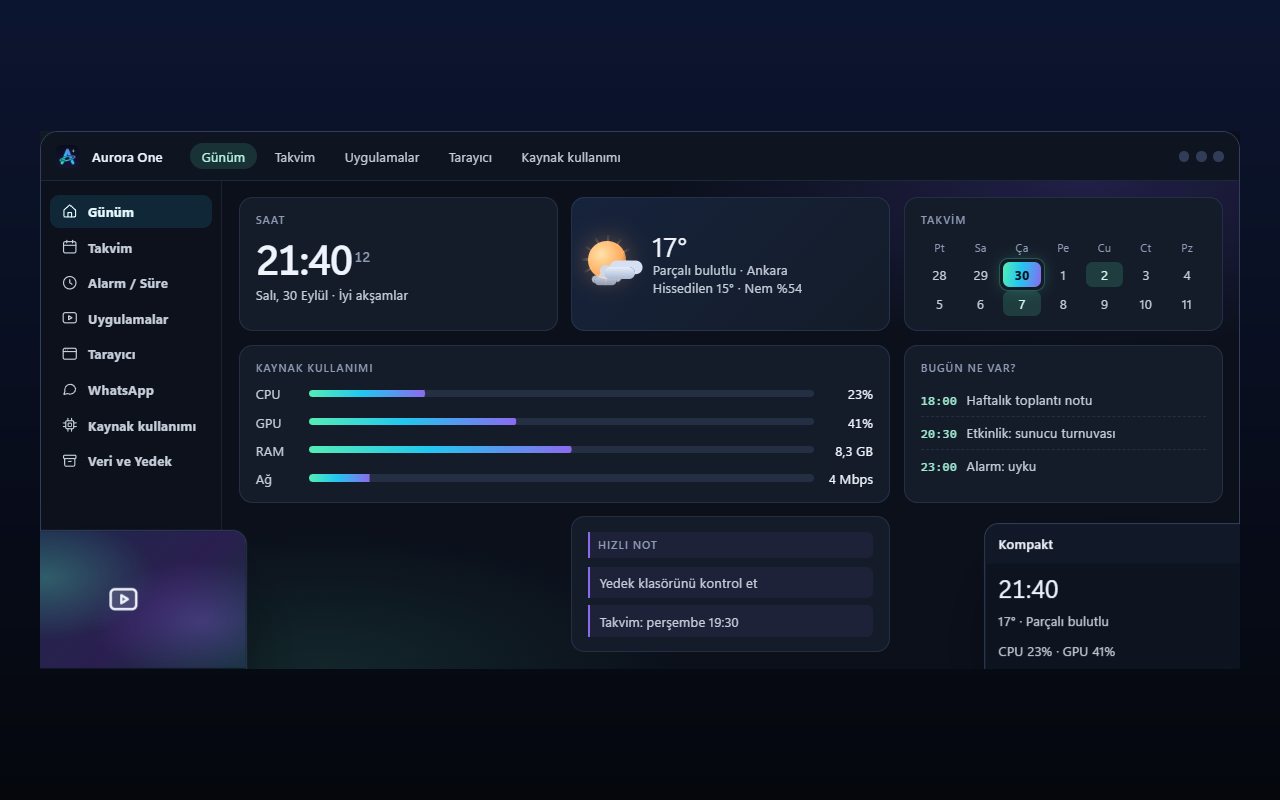
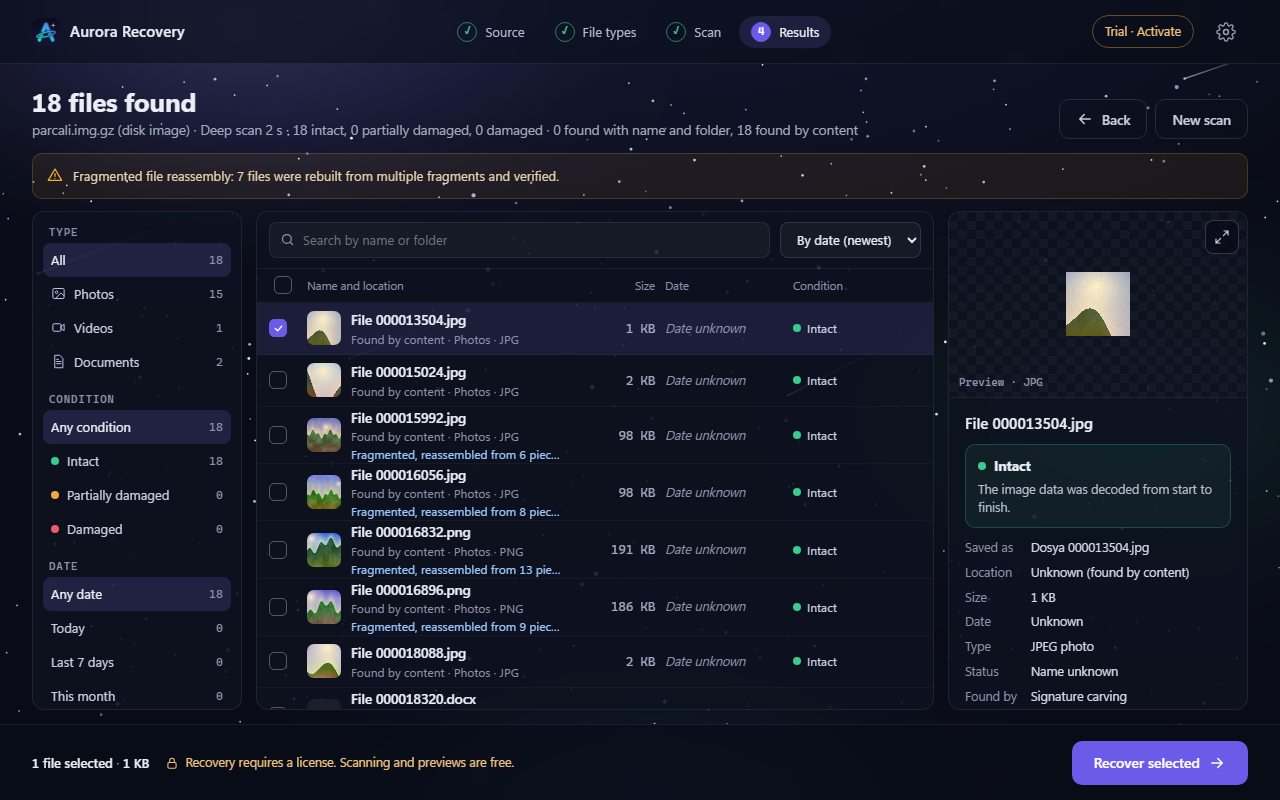
Representative interface
Aurora One App
Windows 10 and 11 (64-bit)
Status: Sales and beta applications are not open yet
Brings the tools you open every day—from calendar and browser to WhatsApp, media apps and system monitoring—into one Windows application; your records stay on your computer.
Finds photos, videos and documents lost to deletion, formatting or corruption on USB drives, SD cards and disks—and tells you whether each file will open before you recover it.